Thursday, January 24, 2019
10 Best And Free Music Player Apps For Windows [2019 Edition]
People who have spent a lot of money to curate their music collection are always in search of a best and free music player software for their PC. That’s because these audio player apps allow audiophiles to listen to their favorite songs whenever they want and help them organize their library in a better manner.
When we talk about Windows 10, there are many free mp3 software available for 2019. However, many old-school music players are out of the picture. If you can recall, I am talking about the long gone free music manager software went by the name Winamp.
On the other hand, Microsoft’s home-baked software, Windows Media Player has been replaced by newer music apps. Although, the former default mp3 music player for Windows still exists as a free optional feature in Windows 10.
The realm of free music apps for PC might be fading away with time, but still, there are many people who consider local solutions over their internet-based audio streaming counterparts. So, wasting any more time, let’s see 2019’s some best free music player software for Windows 10.
Note: We have curated the list of some of the apps for Windows 10 and older versions. Please note that the names aren’t mentioned in any order of preference.
Best Linux Music Players That Every User Must Try
Free And Best Android Music Players
Best Radio Apps For Android To Stream Online Music
10 Best Free Music Player Software for Windows
1. Dopamine
After the speedy installation process of Dopamine completes, what you get to look and feel is enough to put it amongst other best and free music player apps. The open source Windows Media player alternative appears to be a Microsoft-made UWP app, contrary to the fact that it isn’t, and it not available in the Store either.
The things users would like about this popular music app for Windows is the easy to navigate interface, not to mention, the fluidity. All the options and settings are placed in a way that users don’t need to strain their eyes to find them. There are a number of customizations that can be done to improve Dopamine’s interface.
Dopamine supports a vast number of audio formats including MP4, WMA, OGG, FLAC, M4A, AAC, WAV, APE, and OPUS. This music playing app might fall behind a little regarding feature set, but users can take advantage of various things like automatic meta tagging, displaying lyrics in real-time, last.fm scrobbling, etc. Some of Dopamine’s features require the users to run Windows 10 on their computer.
Supported Platforms: Windows
Download Dopamine
2. MusicBee
It is another well-known name in our list of the recommended music player software for Windows. MusicBee is nearly a decade old and works on Windows 7 and later version of Microsoft’s OS.
As soon as you start using the music player, you’ll immediately start appreciating its neat and clean user interface which is complemented by the color combination.
The creators of this free music player have made it easier for people who want to make a switch. MusicBee can easily import your iTunes and Music library. It comes with support for various audio formats, including MP3, AAC, WMA, WAV, M4A, FLAC, OGG, APE, TAK, etc.
This audio player can sync your songs with Android phones, some iOS devices, USB drives, and other portable music players. It can also keep an eye on your hard drive for changes and update the music library automatically.
You can customize MusicBee with a number of skins and plugins (also supports some Winamp plugins). MusicBee’s list of features includes support for 15-band equalizer, DSP effects, CD ripping, automatic metadata import, etc.
MusicBee and doesn’t consume much space on your hard drive. It can be installed on Windows just like any other software. But the free music player is also available as a portable version. Moreover, a UWP version of the music player is also available in Store.
Supported Platforms: Windows
Download MusicBee
3. Clementine
The open source Clementine, fork of another music player known as Amarok, is also one of the best free music players for Windows 10.
Clementine might not be as good looking as MusicBee, but it offers some serious library management to its users. There is a built-in file manager and the music player easily find audio content in lots of online services like SoundCloud, RockRadio, RadioTunes, etc. You can also configure Clementine to access your music stored on cloud drives, including Box, Dropbox, Google Drive, OneDrive, Amazon Cloud Drive, etc.
The free music player software comes with all the standard features including equalizer and support for different formats. What’s more is that you can use your Android device as a remote control for Clementine.
Supported Platforms: Windows, macOS, Linux
Download Clementine
4. foobar2000
Since its inception, foobar2000 has generated a cult following. Modular design of this simple music player for Windows makes it easier to add new features and components to the free music player.
Foobar2000 desktop app is available for Windows XP and later versions; it also offers portable installation. You can find this music software as a UWP app for Windows 10 and above. Foobar2000 apps are available for Android and iOS as well.
In the first look, the interface is more minimalistic than any other audio app for PC out there. Some users might not like it, because, 2019 is here and people might not want to see a music player that appears to be designed for Windows 98. But as it’s said, don’t judge a book by its cover.
FooBar2000 can play a range of audio formats, including MP3, AAC, WMA, OGG, FLAC, WAV, Opus, Speex, etc. It supports automatic meta import, CD ripping, and it can access compressed archives like ZIP, GZIP, 7z, etc. Then come the numerous keyboard shortcuts which you can customize at your will.
Supported Platforms: Windows, Android, iOS
Download Foobar2000
5. AIMP
Hearing about AIMP gives a quick reminder of the great image editing software called GIMP. But this music player for Windows has no ties with GIMP which was developed by the GNU Project. In fact, AIMP, short for Artem Izmaylov, is named after its creator who released the first version in 2006.
For those people who consider visual appearance as a deal breaker, AIMP is one of the top-rated music player in that sector. This player can do a lot more than playing songs stored on the hard drive.
AIMP provides a good looking interface for organizing your song library, creating custom and smart playlists, rips CDs, manage meta tags, change player skins, etc.
If you’re in search of a player for PC with equalizer, AIMP can be a choice worth considering. This is shipped with an 18-band equalizer and a variety of sound effects to listen to the music as you like. A couple of things users would find convenient is the detachable playlist section and the ability to change the theme with a single click.
Regarding audio formats, this audio player for Windows supports almost every popular audio format out there. Also, there is a built-in audio converter, sleep timer, and an alarm clock feature which even wakes a PC from sleep mode.
Supported Platforms: Windows, Android
Download AIMP
6. MediaMonkey
Another free music player software that can help you unclutter your messy collection is MediaMonkey. In the first appearance, it looks like a redesigned version of WMP but with way more features.
Besides playing numerous audio formats, this Microsoft Windows Media Player alternative can automatically tag audio files, help you sync files with devices, stream audio over your network, rip CDs, burn music to DVDs and CDs, convert audio format, manage volume automatically, and much more. This audio player for Windows has a dedicated jukebox which can help users fuel a party with their own music collection while preventing the library from being modified.
MediaMonkey is primarily a music app for Windows, but it’s also available in the form of Android and iOS apps that act as a wireless remote control. There is a premium version of the free music player called MediaMonkey Gold which a way to get for an extra set of features.
Supported Platforms: Windows
Download MediaMonkey
7. VLC
VLC already tops the list of the best music software for Windows of 2019, but the open source software has the capabilities to handle people’s music needs.
With VLC, users can easily create song playlist out of there local music collection and also stream it over their network. It also houses a number of online radio services which the users can access at their fingertips. The built-in equalizer is complemented by other advanced audio management feature which VLC is already known for.
Why people love VLC is because it can play almost every audio and video format that exists. The availability of apps for almost every popular platform makes VLC one of the best free music player software.
Supported Platforms: Windows, macOS, Linux, Android, Chrome OS, Apple TV, Windows Phone.
Download VLC
8. iTunes
Do I need to tell you about iTunes? Probably, the answer would be no. Other than being a bridge between iOS devices and computers, iTunes is also one of the best free music players software for Windows as well. A reason why you can prefer iTunes this single music player can solve different types of music needs but the bulkiness of this music player might compel some users to take a step back.
iTunes can play your locally stored music, and it can play the music you bought on the iTunes music store. And if you have subscribed to Apple Music, the free music player triples as an online music streaming app for Windows.
iTunes supports popular audio formats, including MP3, WAV, AIFF, Apple Lossless, and AAC. It also provides an easy way to manage your songs in the library. Other than playing songs on your PC, you can also stream them to other devices on your local network using a feature called home sharing.
Standard music player features in iTunes include the equalizer, optional compact mode, metadata import, etc. Another advantage that makes iTunes a considerable choice is that Apple backs it. So, updates and new features are added at regular intervals.
Supported Platforms: Windows, macOS, Android
Download Apple Music
9. Windows Media Player
The simplicity and ease of use offered by WMP still make it one of the best and free audio player software for Windows OS, even on Windows 10.
If you don’t like the default look of the player, there are many custom skins for WMP. You’ll easily recognize what the music player has become as you would be able to see those visualizations while playing music.
WMP has got your back when it comes to playing different audio file formats, and it can also play some video formats and image formats. You can efficiently manage your songs library, create playlists, rip music, burn your music collection, etc.
The free music player can also import metadata from the internet. You can sync your music library with different types of portable devices using Windows Media Player. And just like iTunes, WMP also allows you to share your library over your local network.
If you are still looking for a Microsoft-owned music player and manager, you can check out the pre-installed Groove music software. The Windows app has recently gained quite a momentum.
Supported Platforms: Windows
10. Spotify
Many of you use Spotify streaming service on your iOS and Android smartphone. But you might not know about Spotify desktop app that not only bring your vast playlist on your Windows PC but also, allows you to play local content.
Similar to its phone apps, Spotify on Windows 10 syncs your account and adds “Friend’s activity” to the right. Moreover, all the features are available on the desktop app. For instance, you can opt for a private session, play offline songs, listen to podcast and more.
The best part about having Spotify is that you can steam millions of songs as well as play music saved on Windows PC. Not to mention of the fact that it’s a completely free music software for Windows 10.
You can also toggle on the experimental features on the Spotify music app for Windows 10. The only drawback it is more focused on streaming music as compared to other mp3 player apps, which means there are not many functions when it comes to local music.
Supported Platforms: Windows, macOS, Android, iOS, Linux, Chromebook
Download Spotify
What is the best music player for Windows 10?
As you can see, each mp3 player for Windows excels in some parts or the other. It all comes down to the fact which part of media player you like the most. For instance, you can look for a good streaming service in a music player or a good user interface.
Share your views in the comment section below.
Also Read: Best Android Video Downloaders You Can Try
Sponsor ads:
Gihosoft Free iPhone Data Recovery:https://www.gihosoft.com/iphone-data-recovery-free.html
Gihosoft iPhone Data Recovery Free
Free iPhone Data Recovery Software for Windows/Mac
Recover up to 12+ types of files, including contacts, SMS, photos, WhatsApp, Viber, notes, etc.
Restore lost data from iOS devices directly or from iTunes and iCloud backup
Recover iPhone data lost due to iOS upgrade/jailbreak, accidental deletion, device lost or broken
Support all the latest iPhone, iPad and iPod Touch
Both Free and Pro version.
If you lost data after you updated to a new iPhone, you can always use Gihosoft iPhone Data Recovery to get the data back from the old iPhone or backup.You may also like: iphonerecovery.com
If you use android phones, please choose Gihosoft Android Data Recovery.
With Gihosoft Android Data Recovery, no longer afraid of data loss!
Must read:Youtube video downloader for pc
Gihosoft RePicvid Free Photo Recovery Software provides a free photo recovery software for windows to help users recover the deleted or lost photo for free.
Jihosoft Android Data Recovery: the best Android Data Recovery software for Windows and Mac to recover deleted contacts, messages, photos, videos, WhatsApp and etc from Android devices.Tips:How to transfer messages from iPhone to iPhone
jihosoft Free iPhone Data Recovery

Monday, January 21, 2019
10 Best Android Photo Editor Apps In 2019
Don’t you hate it when the photos you’ve clicked doesn’t seem right even after a dozen attempts? You may not like its brightness, contrast, orientation or, you may want to add something to make the photos look catchy. That’s when photo editing apps come to your rescue. They pack a lot of features and are on par with lightweight desktop editors. Most social media apps already include editors in their interface. But, if you want more vivid customizations, you can use any of these photo editor apps we’ve compiled in this post.

Note: This list isn’t in an order of preference; it’s a compilation of the best photo editing apps for Android. You’re advised to choose one as per your need.
10 Best Android Photo Editor Apps 2019
1. Photoshop Express

With a simple and minimalistic interface, Adobe Photoshop Express is a great Android photo editor for quick, easy and powerful editing on devices. It is packed with essential features like crop, straighten, rotate and flip photos. Photoshop Express has one-touch filters, a variety of effects, colors, auto fix, frames and also some advanced tools like Image Rendering Engine to handle large files like panoramic photos. Its Noise Reduction feature can minimize unwanted grain and speckling in night photos.
The app is free to download and is ad-free. Moreover, it provides you the service to share photos on Facebook, Twitter, and other social networking sites.
Special Features Of Photoshop Express
More than 80 filters for instantly editing photos.
Photos can be imported and edited in RAW format
Perspective correction feature for fixing skewed perspective photos
Share the edited photos instantly to Facebook, Twitter, Instagram and other social media websites
2. PicsArt Photo Studio

With over 100 million downloads PicsArt is one of the favorite photo editing apps out there in 2019. The reason PicsArt is such a stand-out is due to the sheer number of options you have for customizing your photos. It comes with a built-in camera feature and a social network for sharing photos.
Other features include collage, draw, frames, stickers and more. The app is available for free with some in-app purchases, though, you have to deal with ads.
Also Read: 8 Best Face Beauty Camera Apps For Android
Special Features Of PicsArt Photo Studio
Brush mode for applying effects selectively on particular parts of a pic
Rapidly evolving AI-powered effects
In-built camera app with live effects
Double exposures using layers and adjustable transparency.
3. Fotor Photo Editor

Fotor is one of the most recommended and best photo editing apps for Android with tonnes of cool features and tools to enhance images. The app offers a wide range of photo effects and filters for editing images. You can use more than 10 customizable ‘Edit’ functions for tweaking brightness, exposure, contrast and other aspects of a pic.
The photo editor also allows you to make collages with plenty of collage templates. The app is free to download but contains ads.
Special Features Of Fotor
Feature-rich photo editor as well as photo licensing platform
‘Enhance’ feature with ‘slide on screen’ capabilities for instant adjustments
Aplenty collage templates like Classic and Magazine
4. PhotoDirector

PhotoDirector is a kind of multi-purpose photo editor app. It has a stylish and user-friendly interface where you can quickly adjust colors and tone of your images with its simple, yet powerful tools. The app has an in-app camera feature where you can apply live photo effects as you snap your photos. You can edit images and share them quickly on Facebook, Flickr and more.
This Android photo editor app is free to download with some in-app purchases and contains ads.
Special Features Of PhotoDirector
Content-Aware tool for removing photobombers and unwanted object.
Artistic preset photo effects such as Lomo, Vignette, HDR and more
Dehaze tool for removing haze, fog, and mist from images
Photo fx for applying effects to certain regions in pictures
Also read: 5 Best No Crop Apps for WhatsApp & Instagram to Post Full Size Pics
5. Snapseed

Snapseed is a powerful Android photo editor developed by Google that carries quite a lot of features. It is available for free and is also ad-free. The app has a user-friendly interface which is easy to use, just tap on the screen and open up any file you like.
Snapseed comes with many different types of filters to modify the look of the photo including 29 different varieties of tools. Once done with the editing, you can easily export the file to save it or share it with your friends.
Special Features of Snapseed
RAW DNG files can be edited and exported as JPG
Native dark theme mode in the app
Selective filter brush for editing only a portion of an image
The option of saving customized preset for applying them to images later
6. AirBrush

AirBrush is easy to use photo editor app. It has user-friendly retouch tools and cool filter options to provide you with a beautiful editing result. The app is available for free, but it has got some in-purchases and contains ads. It has a built-in camera interface that comes with a variety of live effects.
Also Read: How to Hide Private Pictures on Any Android Phone
It has an interactive interface and includes lots of tools such as blemish and pimple remover, whitens teeth and brightens eyes, body slimmer, and artistic retouching features, natural and radiant filters. Also, you can instantly share your edited photos to any social networking sites.
Special Features Of AirBrush
Excellent blemish and pimple remover tool for perfect photos
Natural radiant features for adding natural-looking makeup with mascara, blush, etc.
7. Toolwiz Photos-Pro Editor

Toolwiz Photos is a gorgeous all-in-one PRO photo editor that provides 200+ powerful tools. You can add filters, swap faces, adjust saturation, and even create fun collages.
Designed with an elegant and minimalist interface the app is free and easy to use. Its features and ease of use make it one of the best photo editing app for Android.
Special Features Of Toolwiz Photos
A large collection of magic filters and art filters
Excellent selfie and skin polishing tools including Face rater, dermabrasion, red-eyes removal, and bright eye
More than 200 text fonts with shadow and mask support
8. YouCam Perfect

YouCam Perfect is a handy photo-editor tool for Android in 2019 where you can beautify your portrait photos within seconds. Try editing with its effects and one-touch filters, photo crop and rotate, mosaic pixelates to blur the background, vignette, and HDR effects. The app comes with a Face Reshaper, Eye Bag Remover and also Body Slimmer to shrink your waist and make you look thinner instantly.
It also has video selfie capabilities. It is free to download with some in-app purchases for additional features and contains ads.
Tips: Nowadays, photos play an important role in everyone’s life – they help us capture beautiful moments, connect us to the past, and remind us of the people we met, the places we traveled, the feelings and touching stories of the time. However, Life is always full of small accidents, sometimes these precious photos may suddenly disappear or be deleted by mistake, at that moment, you may have broken your heart and wonder how you can retrieve them quickly.
Never fear! Actually, the deleted photos are not really gone, you still can recover them by using a powerful Android photo recovery software, like Gihosoft Free Android Data Recovery. Just as it’s name implies, it’s specially designed to help Android users restore deleted files from Android phone. Thus, no matter your photos are lost for whatever reasons, you can quickly recover deleted photos from Android by using this program.
Special Features Of YouCam Perfect
Real-time skin beautifying effects in still and video selfies
Cutout and object remover tool
Multi-face detection for instantly touching up a group selfie
“Smile” feature for adding a smile to any image
9. Pixlr
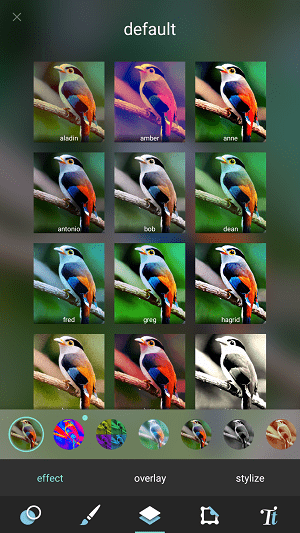
Pixlr is the right photo editor app for everyone; it has all the tools that a user might need. It has over 2 million combinations of free effects, overlays, and filters. You can create photo collages with various layouts, background and spacing options.
Also, it has the ability to stylize photo with a doodle, pencil drawings, and ink sketches. You can share the images directly to various social networking sites. It is free to download with in-app purchases and contains ads.
Special Features of Pixlr
Option to mark the most used effect or overlay as Favorite.
Remarkable on-touch enhancement tools
Auto-fix feature for automatically balancing color in an image
Collage feature with up to 25 photos and various layouts, background, and spacing options
10. Photo Lab

Photo Lab gives your photos a unique touch. It has a collection of over 900 different effects such as realistic photomontages, stylish photo filters, beautiful frames, creative artistic effects, collages for multiple photos and lots more.
With a simple and intuitive interface, the photo editing app is quite easily manageable. The built-in photo editor comes with every basic tool that a user might need: crop, rotate, lighting, and sharpness, and even touch-up. Moreover, you can save your creation to the gallery, share it easily to Twitter, Facebook, Instagram or send it as a message. It has a free version available that displays ads. But the main drawback is that it watermarks your photos when you use its free version.
Special Features of Photo Lab
Sponsor ads:
Gihosoft Free iPhone Data Recovery:iphonerecovery.com
Free iPhone Data Recovery Software for Windows/Mac
Recover up to 12+ types of files, including contacts, SMS, photos, WhatsApp, Viber, notes, etc.
Restore lost data from iOS devices directly or from iTunes and iCloud backup
Recover iPhone data lost due to iOS upgrade/jailbreak, accidental deletion, device lost or broken
Support all the latest iPhone, iPad and iPod Touch
Both Free and Pro version.
If you lost data after you updated to a new iPhone, you can always use Gihosoft iPhone Data Recovery to get the data back from the old iPhone or backup.
Worth reading:download youtube 1080p
Top 10 Best FRP Bypass Tools to Bypass Google Account on Android Device 2019
More than 50 preset styles to choose from for one-touch editing
Advanced face detection algorithm for face photo montages
Also Read: 8 Best Free Android Data Recovery Software to Restore Deleted Files
Choosing The Best Photo Editor For Android
With the apps enlisted above, you can transform your photos by artistic masterpieces. You can choose the app according to your requirement. For example, for making collages we recommend using PicsArt or Pixlr. Similarly, if you want to add fun effects to your selfies, try YouCam Perfect or Airbrush.
Did you find this list of best Android photo editor apps for 2019 helpful? Share your reviews and suggestions in the comments below.
Thursday, December 27, 2018
How To Use Books in iOS 12, 2019 Essential Tips and Tricks
Starting with iOS 12, iBooks has been now renamed to Books and features many changes. Featuring a more modern design, the tabs in this newly designed app have been made similar to that of other Apple apps such as the TV or Podcasts. The iOS 12 Books app now features a full dark mode and some limited drag and drop functionality when you use an iPad.
When it comes to features such as changing the font size, scrolling, theme colors and the auto-night mode they are still available in iOS 12 if the book that you are reading supports it. Tap on the aA icon on the top menu, and you will see the familiar settings including enabling/disabling the Auto-Night setting.

Basic Navigation Tabs in iOS 12 Books
The main tabs on the user interface are now the ‘Reading Now’, library, Book Store, Audiobooks and the Search tab.
Reading Now is where you will perform most of the user actions. When you buy a new iBook/Book, it goes straight to the ‘Want to Read’ section on this tab. This tab features all the titles that you are currently reading, your reading wish list along with recommended titles.
The library is similar to the old ‘My Books’ tab in iBooks. Books can be sorted manually in the My books tab via drag and drop actions making it convenient.
The new Books App now features a dedicated ‘AudioBooks’ section. When you want to download a new Audiobook, you will use this tab to do so. Your older audiobooks will be shown in the Library, and Reading Now tabs.
In this article, we will highlight some of the fundamental changes when it comes to iBooks/Books related action sequences in iOS 12.
How to Hide or Unhide books in iOS 12
There are many reasons why you would want to hide a book from your Reading Now /Library in Books. One of the primary use-case of this feature is to hide books that show as downloading from iCloud or need to be downloaded from iCloud.
How to Hide Books in iOS 12
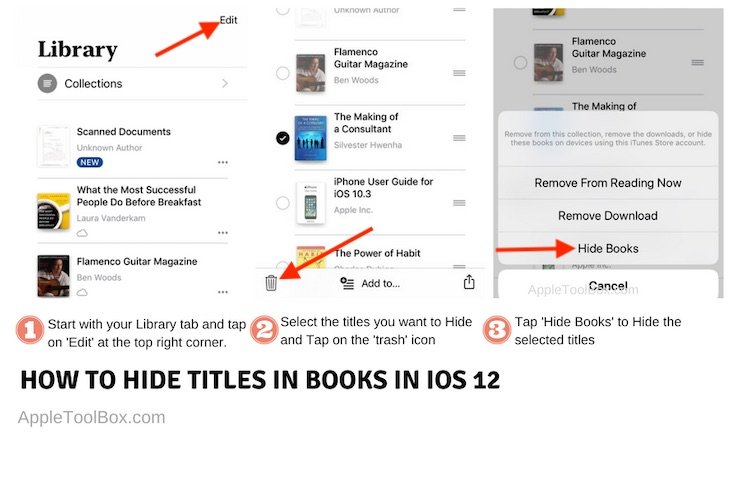
Start with the Library tab as this is where all your books are stored
Tap ‘Edit’ on the top right corner of your screen
Choose the titles that you want to hide
Tap on the Trash Can icon on the bottom left corner of your screen
Choose ‘Hide Books’ to hide the titles selected.
These titles will now be removed from your library and Reading now tab
How to Unhide Books in iOS 12

Start by tapping on Reading Now Tab and scroll to the top
Tap on the ‘Account’ icon at the top right corner of your screen
Next, Tap on ‘Manage Hidden Purchases’ and enter your credentials
You will now find all the titles that you had previously hidden
Tap on ‘UNHIDE’ to move the titles back to your Library / Reading Now Tab
How To Use Books Wish List Feature in iOS 12
Adding and Removing Books to Your Wish List
With iOS 12, now there is a separate section for your Books wish list. Apple had introduced wishlist features for other apps and store in prior iOS releases. Now iOS 12 brings you the Wish List feature for Books via the “ Want to Read” section in the Books App.
When Browsing through the Book Store tab, tap on any book and then tap on “Want to Read”. This action will add the book to your Wish List. ( You may have to scroll up a little bit to find this button!)
Sponsor ads:
Jihosoft iPhone Data Recovery:https://www.jihosoft.com/recovery/ios-data-recovery.html
Jihosoft iPhone Data Recovery
Free iPhone Data Recovery Software for Windows/Mac
Recover up to 12+ types of files, including contacts, SMS, photos, WhatsApp, Viber, notes, etc.
Restore lost data from iOS devices directly or from iTunes and iCloud backup
Recover iPhone data lost due to iOS upgrade/jailbreak, accidental deletion, device lost or broken
Support all the latest iPhone, iPad and iPod Touch.
Tips:
How to transfer messages from iPhone to iPhone
Must read:icloud activation lock removal
If you use android phones, please choose Gihosoft Android Data Recovery.

Similarly, when you tap again on a book in the store that is already in your wish list, it is removed from your Wish List.You may also like: iphonerecovery.com
The Wish List functionality in Books is also available on your MacBook running macOS Mojave.
When you are in the process of browsing Books in the macOS Book store, you can click on the Pre-order button options for “Coming Soon” books and choose to add the title into your Wish List.
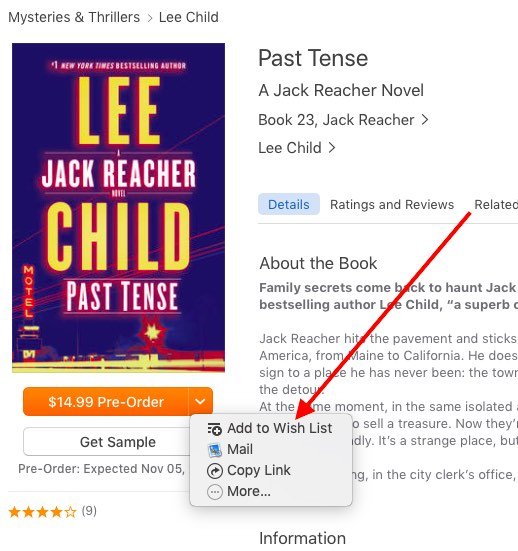
The same functionality also exists for the AudioBooks tab. When you are browsing the audiobooks in the audiobooks tab, you can click on a title and then add it to your wish list via “Want To Read” functionality.
Managing Books in Your Wish List on your iPhone or iPad
Managing your wish list is done via the “Reading Now” tab on your iPhone Books app.
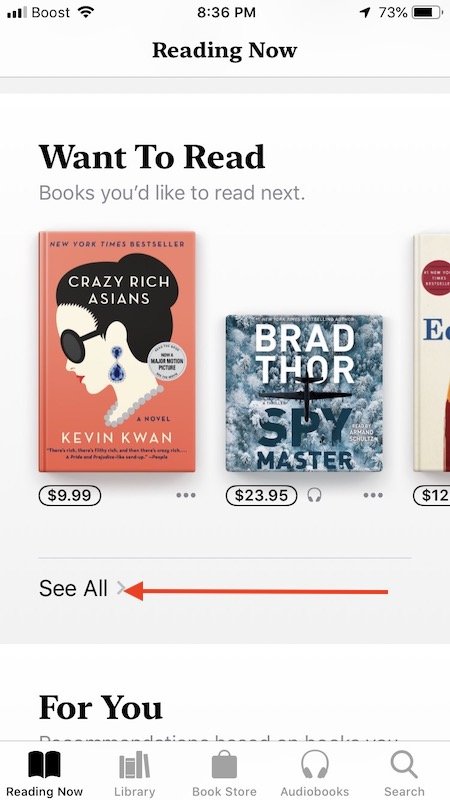
In the Reading now tab, scroll down and tap on the “See All” button under “Want to Read” section to open all the items that have been added to your Wish List. This section only shows up when you have added books/Audio titles to your wishlist.
You can remove the items from the “Want to Read” list by tapping on the three dots next to the book.

How To See Only Downloaded Books in iOS 12 Books App
We haven’t seen a direct way to filter out only the downloaded titles while using the ‘Reading Now’ section in the new Books App.
RELATED:
iBooks Missing After iOS Update, Here are some Tips
Books Not Downloading and Related Problems
Books Store Shows A Blank Screen, How-To Fix
The way to view the various downloaded books on your iPhone / iPad Books app is to tap on “Library” > Collections > Downloaded. This will show you all the Books that have been downloaded to your device and are available for you to read in the reading now section.

We will be sure to update this section if we can find a better way to see only the downloaded titles on a device.
How to Save PDF’s from Web into Books App in iOS 12
Many users like to store their PDF’s into Books app, so that it makes reading easier. The functionality around saving PDF’s from the web into Books has not changed all that much in iOS 12.
On your iPhone using Safari, tap on the ‘Share’ button at the center of the bottom screen.
Next, Choose ‘Copy to Books’ and the pdf is automatically added to your Library in the books App
You can also choose to create a PDF of the webpage by tapping on ‘Create-PDF’ and then Copy it to Books, in the case the actual webpage is not a PDF.
One important caveat to using PDF’s in iBooks is that if you want these downloaded PDF’s to sync across your Apple devices, you will have to enable the iCloud Drive in the Books Settings.
How To Delete Books from iPhone or iPad when using iOS 12
The delete books functionality has not changed much in iOS 12. To delete a book or some books, you start with the ‘Library’ tab.
Tap on Edit at the top corner of the screen and then select the titles that you want to delete from your iPhone or iPad.
Next, tap on the delete icon (trashcan) at the bottom left corner of your screen.
You can either choose ‘Remove From Reading Now’ to remove the book from the Reading Now section or Remove download to remove it entirely from your device.
When a book is removed from the device, it can be still visible in your library they have a little cloud next to them to show that they are in iCloud, and can be re-downloaded later if desired.
How-To Sign out of your Books Account in iOS 12
The ability to sign in and sign out of your Books account on your iPhone or iPad can be extremely valuable in the course of troubleshooting.
To Sign Out of your Books account when using iOS 12, start by tapping on the ‘Reading Now’ tab on your Books app.
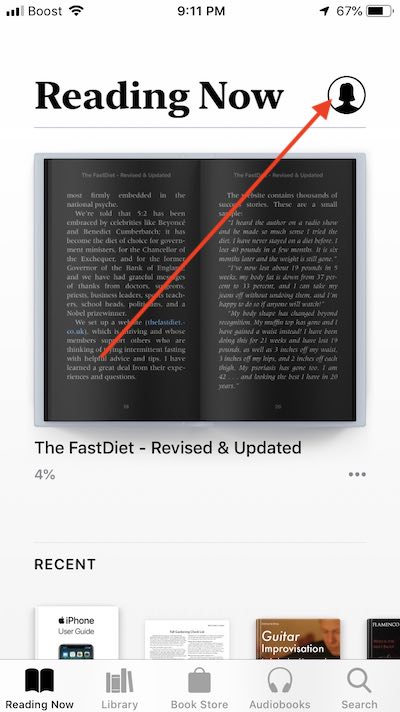
Next, tap on the account icon on the top right corner of the screen and scroll down all the way to the bottom of your screen.
Here you will find the Sign out feature.
Common iOS 12 Book App Problems and How To Fix Them
Books White Screen, App Does Not Open
This annoyance has existed for some users for some time now. When you tap on Books or iBooks app, it doesn’t open the app. You simply see a white screen.
We are not sure what causes this issue on the iPhone. The only workaround that we have found is that you will have to force close the app and re-open it to work. Sometimes it can be frustrating as it takes a few tries to get this working.
If you are facing this issue, we suggest that you simply delete the Books App from your iPhone and iPad and re-install it from the App Store. Please make sure to backup your PDF’s /Books ( that you didn’t purchase from Apple) before you do this. You can also use the app off-load functionality to mitigate this risk.
iBooks/Books Not Syncing in iOS 12, How to Fix
The use of the word ‘Sync’ can be the root of the confusion. If you purchased a book using your MacBook or iPad or any other Apple device, and you cannot find the book in another Apple device, check your settings.
Before Checking the settings, please make sure that you are using the same Apple Id on the multiple Apple devices in question.
Even if you have Books Syncing option enabled, it does not make the book available on all your Apple devices.
Syncing only helps when you want to keep your collections in sync across multiple devices. For example, if you move a book into one collection in one of your Apple devices, syncing will make sure that the book is moved into the same collection in all your other devices.
The key to locating missing books or pdf’s across multiple Apple devices is to make sure that you have the iCloud Drive enabled in your Book Settings.
How to Locate Missing Books or PDF’s in Books App in iOS 12
There are certain key settings that you will need to verify to locate your missing Books in the iOS 12 Books App.
The first and foremost is to make sure you are using the same Apple Id across the multiple devices as we explained in the prior section.
Force quit the Books App
Check your iCloud setting to make sure Books is enabled. Tap on Settings followed by tapping on your Apple Id
Tap on iCloud and make sure that iCloud Drive is ON along with Books
If either one of these settings is OFF, Please enable them and proceed.
The next setting is about making sure when you buy a book using one Apple device, they are downloaded to other devices automatically.
To verify, tap on Settings > Your Apple Id > iTunes and & App Store. Make sure Books and Audiobooks is enabled under ‘AUTOMATIC DOWNLOADS’ section here.
For Books to be copied across all your Apple devices, it requires the icloud Drive setting to be enabled for Books.
Tap on Settings > Books > and under the Syncing option, make sure iCloud Drive is ON and check the devices that you have by tapping on ‘Update Other Devices’
The next action item is to make sure that you have not hidden the book accidentally. Please follow the steps in the prior section to check your hidden purchases/books and make sure you unhide the title in question.
If you have already checked through the steps above, the last step is to Sign out of Your Books account / Sign Out of Your iCloud account, wait for a minute or two and then do a forced restart of your iPhone or iPad.
Once your device starts up, Sign back into your iCloud Account, followed by your Books Account and give it some time for the books to sync.
You should be able to locate your missing Books.
If you were not successful, try deleting the Books app from your device and re-download it from the App store and then check.
We hope that we covered some of the key changes that you will find useful when using the new Books app on your iPad or iPhone.
Please let us know if you have any comments or questions and more importantly if you would like to share a favorite tip with the readers.
How to Fix Cannot Connect to App Store on iPhone and iPad
Cannot connect to App Store Error on iPhone or iPad: How to Fix
Solution #1. Turn On Cellular/Mobile Data for App Store
Have you mistakenly disallowed App Store to use your cellular data? Make sure App Sure can access cellular data on your iOS device.
Step #1. Open Settings app → Cellular/Mobile.

Step #2. Turn ON Mobile/Cellular Data.
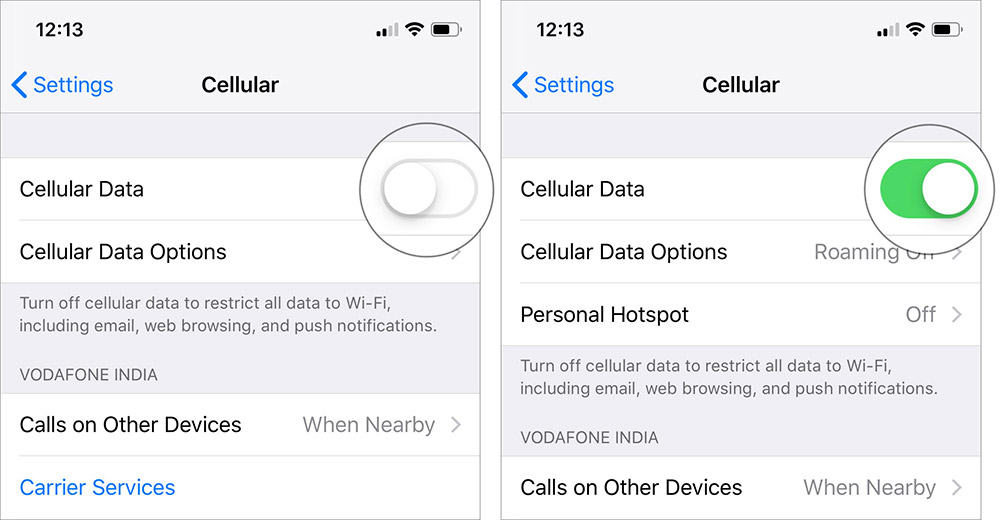
Step #3. Next, scroll down on the same screen and turn on the switch next to App Store.
 In case, the switch is already on for the App Store then reboot your device and try to open it again.
Solution #2. Sign Out from iTunes and Sign In again
Step #1. Launch the Settings app from home screen → Tap on iTunes & App Store.
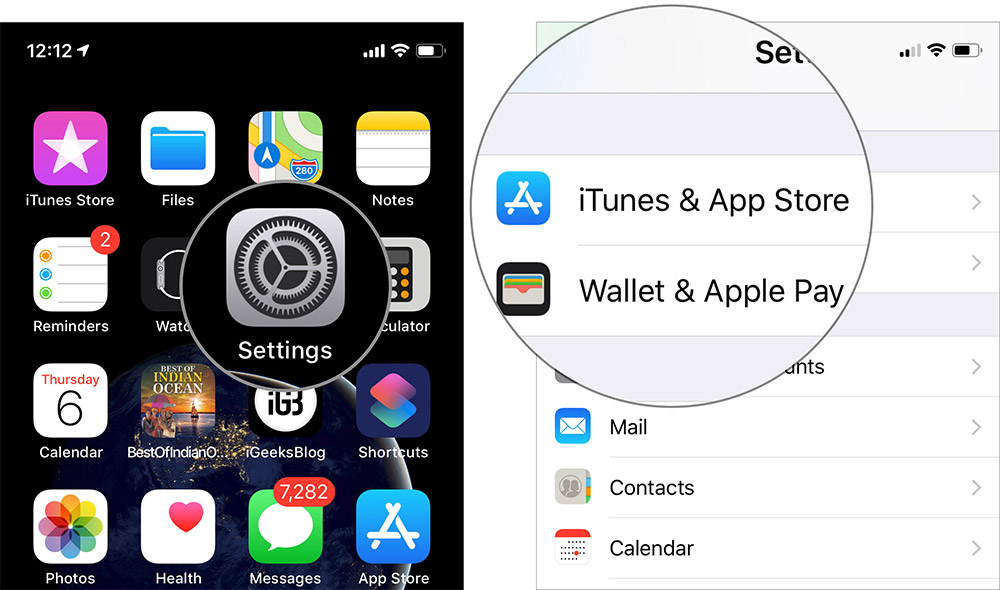
Step #2. Tap on your Apple ID followed by tapping on “Sign Out” on popup window.

Step #3. Sign in again with your Apple ID and password.
Above method has proved to be working for almost all users facing the issue of “Can’t connect to App Store”. There’s another solution as well if the above one did not work out. Check below for details.
Solution #3. Set Date & Time automatically
Step #1. Launch the Settings app → Tap on General.
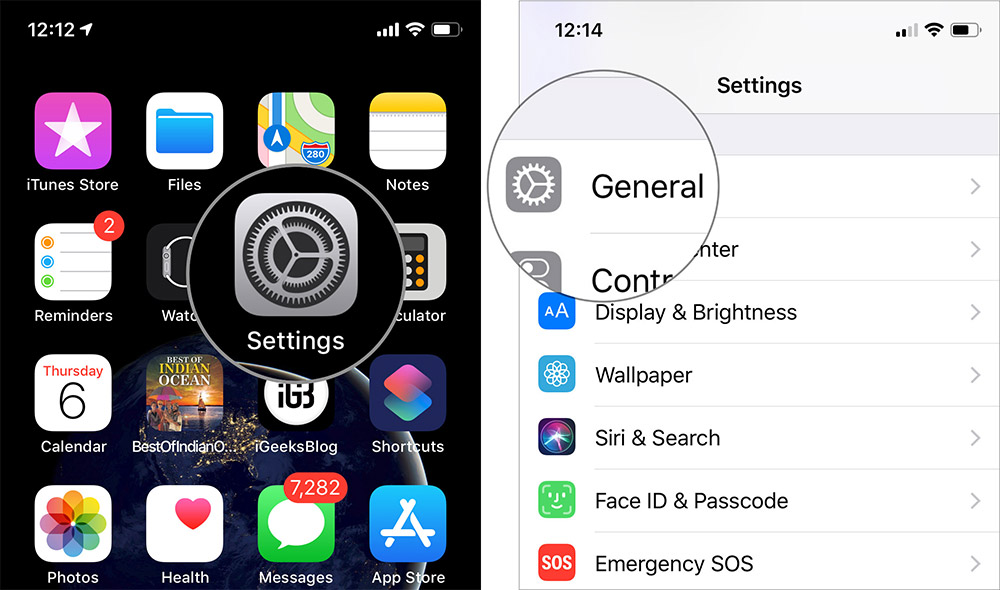 Step #2. Tap on Date & Time.
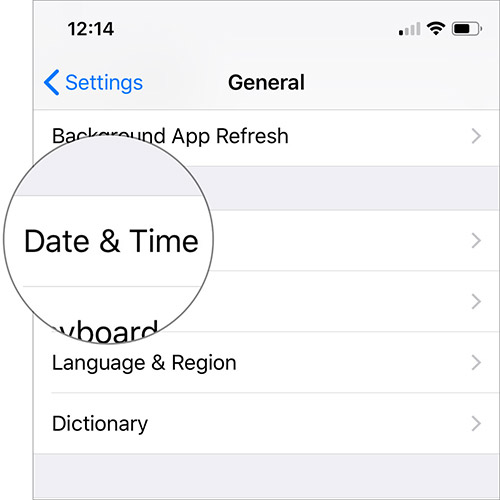
Step #3. Toggle ON “Set Automatically”, if it is toggle OFF.

The Bottom Line
Assuming you have been able to fix this problem by using these simple tricks. If you know any other solution to troubleshoot this problem, do let us know that in the comments and always feel free to put across your valuable feedback.
Sponsor ads:
Gihosoft Free iPhone Data Recovery:https://www.gihosoft.com/iphone-data-recovery-free.html
Gihosoft iPhone Data Recovery Free
Free iPhone Data Recovery Software for Windows/Mac
Recover up to 12+ types of files, including contacts, SMS, photos, WhatsApp, Viber, notes, etc.
Restore lost data from iOS devices directly or from iTunes and iCloud backup
Recover iPhone data lost due to iOS upgrade/jailbreak, accidental deletion, device lost or broken
Support all the latest iPhone, iPad and iPod Touch
Both Free and Pro version.
If you lost data after you updated to a new iPhone, you can always use Gihosoft iPhone Data Recovery to get the data back from the old iPhone or backup.You may also like: iphonerecovery.com
If you use android phones, please choose Gihosoft Android Data Recovery.
With Gihosoft Android Data Recovery, no longer afraid of data loss!
Must read:Youtube video downloader for pc
Gihosoft RePicvid Free Photo Recovery Software provides a free photo recovery software for windows to help users recover the deleted or lost photo for free.
Jihosoft Android Data Recovery: the best Android Data Recovery software for Windows and Mac to recover deleted contacts, messages, photos, videos, WhatsApp and etc from Android devices.
jihosoft Free iPhone Data Recovery
Tips:
How to transfer messages from iPhone to iPhone
7 Best Flight Simulator Games for Android
Best Flight Simulator Games for Android:
Flight Pilot Simulator 3D Free
Flight Simulator: Fly Plane 3D
Turboprop Flight Simulator 3D
Take Off Flight Simulator
X-Plane 10 Flight Simulator
Flight Sim 2018
Avion Flight Simulator ™ 2016
1. Flight Pilot Simulator 3D Free
Flight Pilot Simulator 3D Free is a 3D simulation game where you can pilot different planes and can complete many different types of challenges. The game has realistic 3D graphics that will make you feel you’re actually flying a plane over immersive scenarios. And also the mission of the game is very clear, you just need to race against time, clear every obstacle and land safely on a tiny airstrip. In addition, you can be a pilot anywhere, anytime, as Flight Pilot Simulator requires no internet connection. So, enjoy Flight Pilot Simulator 3D Free, in the subway, while traveling, or whenever you want and become the best pilot by conquering the skies.

Main Features:
Realistic 3D graphics.
Cool animations.
Real life planes with challenging missions.
Immersive scenarios.
Offline mode.
Download the Game
2. Flight Simulator: Fly Plane 3D
Become a pilot and fly your very own commercial jet in 3D graphics only in the Flight Simulator: Fly Plane 3D game. The mission of the game is very simple, you need to fly your plane through all of the waypoints and ensure you head towards the correct destination. But the catch is there will be a number of difficulties arriving in your way. You just need to make sure that you land properly and don’t crash. In addition, Flight Simulator has great visuals, exciting sound effects, and a gameplay that will always keep you on the edge. So, complete every level, and avoid the obstacles that will be parked in your way for winning in the Flight Simulator: Fly Plane 3D game.

Main Features:
3D graphics.
Amazing levels.
Realistic graphics.
Cool sound effects.
Download the Game
3. Turboprop Flight Simulator 3D
Control a military aircraft and carry out breath-taking missions in your Android devices with the Turboprop Flight Simulator 3D game. In this game, you need to act as a pilot of a military aircraft, which needs to fly in various weather conditions and emergencies. And yet you have to board your flight safely without dealing with any crash. In addition, the game has great 3D graphics with detailed airplanes that will keep you intact in every mission. Also, Turboprop Flight Simulator has simple controls so that the only difficulty you get is to complete the challenges and not on how to fly. So, perform all tasks and lift a multi-ton aircraft in the sky and deliver all the necessary goods on time only in the Turboprop Flight Simulator 3D game.

Main Features:
Challenge yourself in varied missions.
Realistic physics for flight simulation.
Great 3D graphics.
No mandatory ads to disturb your game.
Download the Game
4. Take Off Flight Simulator
If you are someone who gets bored by playing repetitive levels again and again then do give a try to Take Off Flight Simulator game as it has 50 fun and exciting missions that will sure keep you on the edge. The main mission of the game is to land your plane safely in extreme weather conditions were more hurdles are waiting for you. In addition, Take Off Flight Simulator provides 24 airplanes with realistic 3D cockpits and amazing scenarios from all around the world. So, start your pilot career and manage your own airline wrapped with stunning and beautiful graphics only in the Take Off Flight Simulator game.

Main Features:
Realistic 3D graphics.
21 famous airports around the world.
Customization options.
Difficult challenges in exciting scenarios.
Download the Game
5. X-Plane 10 Flight Simulator
X-Plane 10 is a relatively realistic flight simulator where players can get behind the controls of more than a dozen airplanes. In the game, you need to feel like a real pilot who needs to carry out a lot of tasks and missions in order to protect your airplane. But what is the fun of flying when there is no good place to fly them? Don’t worry in X-Plane 10 you get a number of free regions that features detailed terrain, lifelike city buildings, 3-D airports, and many such places. Also, the game offers in-app purchases where you can get your hands on a number of professional aircraft. So download X-Plane 10 Flight Simulator and experience what it feels like to be a real pilot that flies X-plane.

Main features:
Beautiful scenery.
A number of professional aircraft to choose from.
More than 50 systems modeled.
Combat missions.
Download the Game
6. Flight Sim 2018
Choose from an amazing selection of realistic airplanes and explore the open global world map on your Android device only in the Flight Sim 2018 flight simulator game. In this game, you can fly across the globe between a large selection of real cities and airports. And yet you have to prove yourself as the best pilot by landing the plane without having a crash in extreme weather conditions. In addition, the game has realistic flight controls that will make you feel as you are actually flying a plane. So, prove yourself as the best pilot and enjoy the immersive experience of flying a plane in the Flight Sim 2018 game.

Main Features:
Spectacular Day-Night Cycle.
Realistic Flight Controls.
Dynamic Weather Systems.
Accurate engine sounds.
Lots of customizations.
Download the Game
7. Avion Flight Simulator ™ 2016
Avion Flight Simulator is a sophisticated flight simulator that includes 12 planes, 4 detailed cities, and over 9 airports. And the 12 planes have a detailed cockpit view with realistic design and unique features. In the game, the players can fly anything from single-engine aircraft to jumbo jets, with realistic flight simulation experience. In addition, the game includes an immersive set of 60+ missions that will sure keep the players always on the edge. So, fly in dynamic weather, trees, and interactive clouds and become the best pilot in the Avion Flight Simulator ™ 2016 game.

Main Features:
12 detailed aircraft.
An immersive set of 60+ missions.
Dynamic real-world weather system.
Supports various languages.
Download the Game
So, here is a list of 7 Best Flight Simulators Games For Android that will literally make you feel that you are flying an actual plane. But keep in mind, these games are usually hard to play and even harder to master. So, in no time you will get addictive to there realistic graphics and amazing gameplay that will keep you engage at every level and mission.
Bonus Tips:
Restoring Lost Photos and Videos from iPhone
If you have deleted some of your pictures or videos from your gallery, then there is a straightforward way to Recover Deleted Files iPhone back.
After you delete the media files from your gallery, be it photos or videos, then you must know that iOS has a feature that the deleted media files doesn’t get deleted immediately, but it gets compiled to a temporary folder from where it gets deleted after 30 days. If you lost data after you updated to a new iPhone, you can always use Gihosoft iPhone Data Recovery to get the data back from the old iPhone or backup. Should you wish to recover these files, you must go to that “recently deleted” folder and retrieve these files before 30 days.
If you use android phones, please choose Gihosoft Android Data Recovery.
Worth reading:Best youtube downloader online download youtube 1080p
Must Read:
How to transfer messages from iPhone to iPhone
Tips:
How to transfer messages from iPhone to iPhone
Must read:icloud activation lock removal
Must read:Gihosoft Free iPhone Data Recovery:https://www.gihosoft.com/iphone-data-recovery-free.html
Wednesday, December 5, 2018
2019 Fix iPhone Notes Not Syncing
Fix iPhone Notes Not Syncing 2019
Syncing your notes is necessary if you use multiple devices. You do not have to be fastidious about the device you make your notes on because you can easily access the notes across all your devices.
However, some users complain of iPhone notes not syncing. If you are one of such users, you should know that there could be different reasons why your notes aren’t syncing between iPhone and mac. This guide will list some common the possible causes and simple steps you can take to find a solution.
Why are My iPhone Notes Not Syncing?
There are various reasons why your notes aren’t syncing between iPhone and mac or other Apple devices. Here are some of them:
You’re storing your notes locally: before you cry wolf about iPhone notes not syncing, you should confirm you’re not the cause of the problem. If the ‘on my iPhone’ feature is enabled, you are instructing the device to store your notes locally.
Multiple iCloud accounts for different devices: Your notes not syncing between iPhone and mac could be because you’re using different iCloud accounts on these devices.
iOS is not updated: outdated iOS versions is another common reason why your notes may not sync between your iPhone and iPad or other Apple devices.
Syncing via iCloud is disabled: Your Apple devices are capable of syncing more than just notes. When you go to your iCloud settings, you’d see all the features you can sync with iCloud. If ‘Notes’ is not one of the ticked features, you’d have the problem of iPhone notes not syncing.
How to Solve iPhone Notes Not Syncing
Now that you know the possible causes of your iPhone notes not syncing, we will explore the solutions for this problem. Just follow these easy steps anytime you observe that your notes aren’t syncing between iPhone and mac or other devices. You can rest assured that the steps highlighted in this article are effective and easy to follow.
1. Confirm you have logged in the same iCloud account
The moment you observe your notes aren’t syncing between iPhone and mac, you should confirm the two devices aren’t signed into different iCloud accounts.
Step 1: Go to ‘settings’ on your iPhone.
Step 2: Tap iCloud or your name and confirm the credentials you used to log in. If you are not logged in at all, you should set up and iCloud account and login with your Apple ID and password.
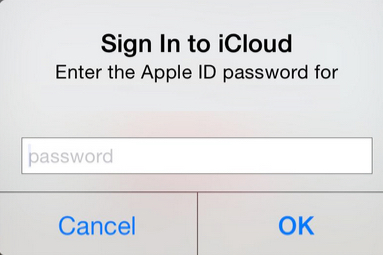
To log in to iCloud on your mac, go to ‘System Preferences’ and you’ll see the iCloud option. If you are using a Windows computer, you would need to install iCloud for Windows before anything else.
2. Confirm the notes aren't stored locally on iPhone
When you store your notes locally on your iPhone, you are telling your device you do not wish to sync your notes with iCloud. You would need to disable this setting before your iPhone notes not syncing problem can be solved.Sponsor ads:
Jihosoft iPhone Data Recovery:https://www.jihosoft.com/recovery/ios-data-recovery.html
Jihosoft iPhone Data Recovery
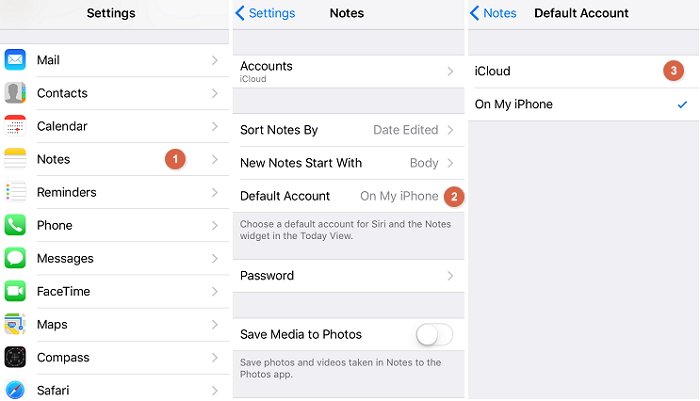
Step 1: Go to ‘Settings’ and tap ‘Notes’.
Step 2: Tap ‘Default account’ .
Step 3: Select the ‘iCloud’ option. Once you select the iCloud option, your notes would be stored on your iCloud and the notes can now sync across your devices.
3. Confirm you have enabled Notes settings
If you do not enable Notes settings on your iCloud, your notes would not sync across your Apple devices. You can follow the steps below to enable ‘Notes’ settings:
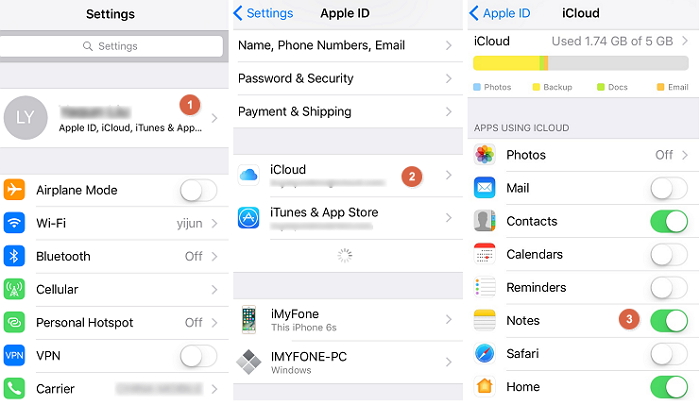
Step 1: Go to ‘Settings’.
Step 2: Tap on your ‘Apple ID’. You should see this at the top of your screen.
Step 3: You’ll see ‘Notes’ among the other options. Toggle on the ‘Notes’ button to enable syncing.
4. Sign out iCloud and back in again
This serves to refresh your iCloud account. You can follow the steps below to sign out your iCloud account and back in again.
Step 1: Go to ‘Settings’.
Step 2: Tap your name at the top of the screen.
Step 3: Tap the sign out at the bottom of the screen.
Step 4: Enter your Apple ID and Password to sign in again.

This procedure works if your device runs on iOS 10.3 or later. If you're using earlier iOS versions, you’ll tap ‘iCloud’ and then ‘Apple ID’ before you’ll see the sign out option.
5. Restart your iPhone and iPad or Mac
Restarting is a safe method of troubleshooting whatever issue you are experiencing with your iPhone. You should explore this option whenever you observe that your iPhone notes are not syncing especially when you are sure the problem just came up. If the problem you are experiencing is as a result of a conflict between software on mac or iPhone, restarting would help you solve the problem.
Step 1: Long press the sleep/wake button on your iPhone until you see a red slider on your screen.
Step 2: Drag the red slider to switch off the phone.
Step 3: Wait for about 30 seconds. The phone must have shut down while you are waiting.
Step 4: Long press the sleep/wake button on your iPhone and watch as the phone reboots.
If you are using an iPhone X, the slider would only show up when you press and hold the side button together with any of the volume buttons. Once the slider appears, you can follow the same steps listed above.

If you want to restart your mac, you’ll see the menu button on the upper left corner of your device’s screen. Click on it and select the restart option when the menu pops up. Then a prompt will ask you to confirm restart. Your mac would restart after confirming.
Sponsor ads:
Gihosoft Free iPhone Data Recovery:https://www.gihosoft.com/iphone-data-recovery-free.html
Gihosoft iPhone Data Recovery Free
Free iPhone Data Recovery Software for Windows/Mac
Recover up to 12+ types of files, including contacts, SMS, photos, WhatsApp, Viber, notes, etc.
Restore lost data from iOS devices directly or from iTunes and iCloud backup
Recover iPhone data lost due to iOS upgrade/jailbreak, accidental deletion, device lost or broken
Support all the latest iPhone, iPad and iPod Touch
Both Free and Pro version.
If you lost data after you updated to a new iPhone, you can always use Gihosoft iPhone Data Recovery to get the data back from the old iPhone or backup.You may also like: iphonerecovery.com
If you use android phones, please choose Gihosoft Android Data Recovery.
With Gihosoft Android Data Recovery, no longer afraid of data loss!
jihosoft Free iPhone Data Recovery
Worth reading:Best youtube downloader online download youtube 1080p
Tuesday, December 4, 2018
How to Fix iTunes Error 4280

When Will the iTunes Error 4280 Occur?
iTunes Error 4280 sometimes occurs when you are trying to burn a CD via iTunes. The error can be very persistent and therefore quite annoying as it tends to appear every time you try to restart and burn a CD. Fortunately, there are some solutions available that you can try in order to solve the problem.
The Main Causes of iTunes Error 4280
There could be a number of causes behind this error. Mostly, it occurs due to the wrong speed of burning in iTunes. However, it could also be incompatibility of the CD burner and your computer.
Following are the main causes of the error:
Corrupted download or incomplete installation of iTunes.
Drivers have been corrupted or there are invalid entries (iTunes-related) in the registry.
Virus/malware attack has corrupted or damaged iTunes-related program files or Windows system files.
Mistakenly or maliciously deleted iTunes-related files.
Improper or failed uninstallation of iTunes can also lead to this issue.
Solutions for iTunes Error 4280
Following are some other helpful solutions:
1. Update iTunes
One of the first things you should do when you face error 4280 is update iTunes. iTunes updates bring bug fixes that are often sufficient to fix various errors. Updating iTunes is very easy and does not take a lot of time, that’s why it is recommended that you update the software as it might solve your problem and save you a lot of time and hassle looking for other solutions.
Follow these instructions to update iTunes:
Step 1: Open iTunes on your PC.
Step 2: Now click Help and then click on Check for Updates option.
Step 3: If an update is available, follow the on-screen instructions to update the software.
2. Edit the gcdrtype.cfg File
If you are using a CD drive manufactured by Sony and facing error 4280, then there is a specific solution to fix this. You will need to make a small change in a configuration file to fix the error.
Follow these instructions:
Step 1: First you need to find out whether you have a Sony CD drive. To do this, launch iTunes and navigate to Help > Run CD Diagnostics.
Step 2: Now put an audio CD in the optical drive of your computer and click OK.
Step 3: After that, look for this text: IDE\CdRomSONY_CDRW/DVD_CRX830E. You have a Sony CD drive if this text is shown.
Step 4: Now close iTunes and navigate to Program Files\iTunes\CD Configuration and find the gcdrtype.cfg file.
Step 5: Right-click on that file and click Open.
Step 6: Once it is opened in Notepad, scroll to the last section of the text and add | NOSENDOPC at the end of the line that begins with DRVGENERALFLAGS. Click Save afterwards. The error should be fixed now.
3. Reinstall iTunes
If none of the above-mentioned solutions work, then it is recommended that you uninstall iTunes completely and then reinstall it.
Follow these instructions:
Step 1: Quit iTunes and open Control Panel. Then navigate to Program > Program and Features.
Step 2: Now uninstall iTunes as well as its related components.
Step 3: Next, download the latest version of iTunes and install it by following the on-screen instructions.
Sponsor ads:
Gihosoft Free iPhone Data Recovery:https://www.gihosoft.com/iphone-data-recovery-free.html
Gihosoft iPhone Data Recovery Free
Free iPhone Data Recovery Software for Windows/Mac
Recover up to 12+ types of files, including contacts, SMS, photos, WhatsApp, Viber, notes, etc.
Restore lost data from iOS devices directly or from iTunes and iCloud backup
Recover iPhone data lost due to iOS upgrade/jailbreak, accidental deletion, device lost or broken
Support all the latest iPhone, iPad and iPod Touch
Both Free and Pro version.
If you lost data after you updated to a new iPhone, you can always use Gihosoft iPhone Data Recovery to get the data back from the old iPhone or backup.You may also like: iphonerecovery.com
If you use android phones, please choose Gihosoft Android Data Recovery.
With Gihosoft Android Data Recovery, no longer afraid of data loss!
jihosoft Free iPhone Data Recovery

Worth reading:Best youtube downloader online download youtube 1080p
Subscribe to:
Posts (Atom)