Thursday, February 21, 2019

iPhone Can’t Charge? Here Are the Tips 2019


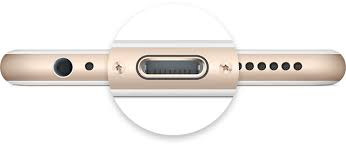
1 Check iPhone's Charging Port

Sometimes, the problems are not as terrible as we begin assuming. They just have simple solutions. If your iPhone can't charge, you simply need to scrutinize the iPhone's charging port. See if it is blocked or not. You may not believe but a tiny amount of lint from the cloth can be responsible for the issue. We all keep our phones in our pockets, no surprise the charging port can easily get trapped by a little (or maybe more than that) amount of lint stopping the iPhone to get charge eventually. Moreover, debris, gunk or any sort of dust particles can be responsible for the same as well. Therefore, check the iPhone's charging port and if you find any kind of dust particle; don't delay to clean it up. You can use a paper clip or tweezers or even toothbrush for doing so. After that, check if your iPhone is charging or not.


2 Check Charger and USB Cable

Are you charging your device with non-Apple cable or a charger? If yes, then this can be a reason for hindrance in charging your iPhone. So, if iPhone can't charge, please avoid the use of cheap iPhone chargers and check with original ones. Original chargers are no doubt, expensive but to prevent the charging issue, add some more bucks to your budget and convert the low-quality chargers to good ones.


3 Change Power Sources

Still, if you find your iPhone can't charge you should check the power source in which you've plugged in your charger. Try changing the power sources like other wall power outlet or try plugging your data cable into your computer or laptop to check if your iPhone takes on any charge or not. Try plugging your data cable into your docking station to check if your iPhone still can't charge or not.

Soon as your iPhone takes up any charge, a lightning bolt will appear next to your battery icon, visible in the status bar of your device.


4 Check Software Issues

Another easiest tip you can try when your iPhone can't charge, is forcing it to restart. Keep pressing the "Sleep/Wake" button. Along with it, press "Home" button if you possess iPhone 6 or earlier or "Volume Down" if you have iPhone 7. Hold as it is for approximately 10 seconds until you see Apple logo.
1 Restore iPhone

If the problem is still not fixed, attempt for restoring with iTunes. Here is a quick step-by-step guide to hard reset your iPhone with iTunes.


Launch iTunes on your computer and plug in your iPhone to it.


You then need to click on iPhone button after iTunes detects your phone.


You are then required to look under the tab named as "Summary" and hit on "Restore iPhone".


A pop-up message will appear prompting you to make a backup of your device or if you have it backed up already, hit "Restore", this will initiate the process of wiping all the data and restoring your iPhone settings to its factory state.


On successful completion of the process, your iPhone device will start and show up "Slide to Setup screen". You'll be good to go then, and may eventually solve you iPhone can't charge issue.


2 Fix iPhone Can't Charge Problem without Data Loss Sponsor ads:

Gihosoft Free iPhone Data Recovery:https://www.gihosoft.com/iphone-data-recovery-free.html

Gihosoft iPhone Data Recovery Free

Free iPhone Data Recovery Software for Windows/Mac

Recover up to 12+ types of files, including contacts, SMS, photos, WhatsApp, Viber, notes, etc.

Restore lost data from iOS devices directly or from iTunes and iCloud backup

Recover iPhone data lost due to iOS upgrade/jailbreak, accidental deletion, device lost or broken

Support all the latest iPhone, iPad and iPod Touch

Both Free and Pro version.

If you lost data after you updated to a new iPhone, you can always use Gihosoft iPhone Data Recovery to get the data back from the old iPhone or backup.You may also like: iphonerecovery.com

If you use android phones, please choose Gihosoft Android Data Recovery.

With Gihosoft Android Data Recovery, no longer afraid of data loss!

Must read:Youtube video downloader for pc

Gihosoft RePicvid Free Photo Recovery Software provides a free photo recovery software for windows to help users recover the deleted or lost photo for free.

Jihosoft Android Data Recovery: the best Android Data Recovery software for Windows and Mac to recover deleted contacts, messages, photos, videos, WhatsApp and etc from Android devices.Tips:How to transfer messages from iPhone to iPhone

jihosoft Free iPhone Data Recovery

Wednesday, February 20, 2019

How to View iPhone Safari History on Computer


1 View iPhone Safari History on Mac by Syncing It via iCloud

If you want to view any Old browse history, but your Safari browser is not synchronized then it is a big trouble to view your required data. Though, Safari uses iCloud help to keep long times history. So you just need to perform some steps to synchronize your Safari history on Mac. iCloud can sync all Safari history from all iDevices which you have logged in with the same iCloud. Here are some steps to follow.Sponsor ads:Schedule Text Messages on iPhoneMust Read:If you lost data after you updated to a new iPhone, you can always use Gihosoft iPhone Data Recovery to get the data back from the old iPhone or backup.

Gihosoft Free iPhone Data Recovery:iphonerecovery.com

If you use android phones, please choose Gihosoft Android Data Recovery


Go to the terminal App in Applications and then Utilities on MAC devices.


Tap on iCal menu and select Preferences.


Before opening Terminal, You need to close or quite Safari browser first.


After opening Terminal, Type this text "defaults write com.apple.Safari IncludeInternalDebugMenu 1" and then GO.


Now, Go return and launch Safari, if finally, the above text worked. Then you will have a new "Debug" icon at the top of your Menu screen.


It was hidden-Previously at the default setting. Now, you can click on the icon to launch this Debug.


then click on "Sync iCloud history".
Now your MAC device will perform the rest and will present sync history with one-two minutes.


now again if you like to hide this Debug, Then simply type this "defaults write com.apple.Safari IncludeInternalDebugMenu 0" in Terminal and quite Safari before making his change.


You are done and can view your Safari history on Mac now!


2 View iPhone Safari History on Computer by Emailing Them

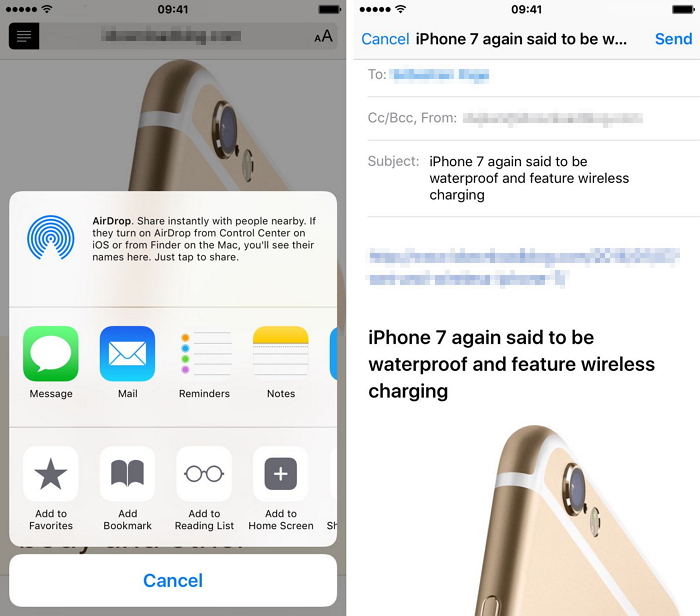
There is no any possible way to view your browsing history directly at your computer, however, we can refer a simple way and that is email you're interested web page to your e-mail. So, that you can view the previously required pages or can save your favorite sites for future. Follow these easy steps to acquire this method.


Brows your interested web page on Safari.


Click on the Upload icon at the bottom of the screen.


Then simply click on Mail icon to send the link to yourself.


You can open or browse that page directly on your computer anytime.


However, even though the above two methods are good, they are not helpful or too complicated if you use Windows computer or want to transfer lots of Safari history. So we bring the third solution for you to view iPhone Safari history on PC/Mac.

Sponsor ads:

Gihosoft Free iPhone Data Recovery:iphonerecovery.com

Free iPhone Data Recovery Software for Windows/Mac
Recover up to 12+ types of files, including contacts, SMS, photos, WhatsApp, Viber, notes, etc.

Restore lost data from iOS devices directly or from iTunes and iCloud backup

Recover iPhone data lost due to iOS upgrade/jailbreak, accidental deletion, device lost or broken

Support all the latest iPhone, iPad and iPod Touch

Both Free and Pro version.

If you lost data after you updated to a new iPhone, you can always use Gihosoft iPhone Data Recovery to get the data back from the old iPhone or backup.

Top 10 Best FRP Bypass Tools to Bypass Google Account on Android Device 2019

Worth reading:download youtube 1080p

If you use android phones, please choose Gihosoft Android Data Recovery


Jihosoft Android Data Recovery: the best Android Data Recovery software for Windows and Mac to recover deleted contacts, messages, photos, videos, WhatsApp and etc from Android

Tuesday, February 19, 2019

Best 4 iPod Erasers 2019


2 iSkysoft Phone Data Eraser

This is another good iPod eraser that you may use to clear your device. It is one of the leading iPod erasing App that ensures some safety for your device. It can erase all junk files, photos, videos etc. This software/eraser gives the power to control what is accessible on your iPod and what is not.

iSkysoft data eraser is fully compatible with all iOS devices including iPod, iPhone 7, iPhone 6S, and others. You can use it to protect private data by erasing all unwanted data on your iPod without any trace of existence.


3 PhoneClean

PhoneClean is also one of the top iPod erasers ever. It allows iPod users to enjoy even faster, cleaner and better devices in many ways. PhoneClean has unique features like ultimate speedup, hands-free cleaning, and in-depth privacy protection among other innovative features to serve you better.

PhoneClean also makes it possible for iPod users to enhance data security by deleting unwanted data while ensuring that sensitive information is not leaked out.


4 Safewiper iOS Data Eraser

iOS Data Eraser is a special iPod data eraser that uses 5 highly efficient data erasing models that are readily available to choose from. It is built to supports a variety of file formats including messages, videos & Photos, cookies, history, call history contacts, system settings, among others. It can actually erase files mentioned above from iPod.


5 Coolmuster iOS Eraser

Coolmuster iOS Eraser is an iPod erasing software designed to provide users with a proper and efficient way to erase all manner of data including text messages, contacts, videos, etc. it deletes and also auto recover data if needed.


The above are the current top 4 iPod erasers that you can use to quickly get your device clean and keep enjoying your latest music and videos.

However, you should not be in the dark regarding the best among them. There is no doubt that Umate Pro is the best and we recommend you give it a try.Sponsor ads:

Gihosoft Free iPhone Data Recovery:iphonerecovery.com

Free iPhone Data Recovery Software for Windows/Mac
Recover up to 12+ types of files, including contacts, SMS, photos, WhatsApp, Viber, notes, etc.

Restore lost data from iOS devices directly or from iTunes and iCloud backup

Recover iPhone data lost due to iOS upgrade/jailbreak, accidental deletion, device lost or broken

Support all the latest iPhone, iPad and iPod Touch

Both Free and Pro version.

If you lost data after you updated to a new iPhone, you can always use Gihosoft iPhone Data Recovery to get the data back from the old iPhone or backup.

Top 10 Best FRP Bypass Tools to Bypass Google Account on Android Device 2019

Worth reading:download youtube 1080p

If you use android phones, please choose Gihosoft Android Data Recovery

Jihosoft Android Data Recovery: the best Android Data Recovery software for Windows and Mac to recover deleted contacts, messages, photos, videos, WhatsApp and etc from Android

Monday, February 18, 2019

5 Ways to Fix iPhone/ iPad won’t Reboot 2019


While we have advanced by leaps and bounds on the technology front, it is still important to know that no technology is flawless. If you use an iPad or iPhone and it won’t reboot no matter how many times you try to turn it on, then this post is definitely for you. Depending on what the actual problem is, the solution can be pretty simply or can sometimes be a little complex.

But before running to your closest Apple store, make sure that you read this post completely and there is a major possibility that you might actually be able to turn it on. If you just have a black screen on your iPhone or iPad, try the below-mentioned methods to turn it on.
5 Ways to Fix iPhone/ iPad won’t Reboot
1 Let it Charge for a While

There is a possibility that there might be no charge left in the battery, so the iPhone/iPad won’t reboot. While the device generally turns on at least even if it has some power left, it’ll fail to do so if the battery is dead.

So, connect your device to the wall charger and let it charge for a while. If the battery has been completely dead for a while, it might take around 15-20 minutes to turn on. So, let the device charge for a while before trying to reboot it again.


If still fails, there is also a possibility that there might be some problem with the charger or its cable. Borrow a charger from someone to charge your iPad or iPhone and it might turn on.


2 Give it a Deep Clean with iMyFone Umate Pro

Download iMyFone Umate Pro or iMyFone Umate Pro for Mac into your computer and try giving a deep clean to your iPhone. There is a possibility that you might have recently downloaded something on your device and some kind of virus or malware might have entered your device which is not allowing your device to turn on.

If your iPhone or iPad won’t reboot, use Umate Pro to “Erase All Data” from your device and reset it, including the temporary and junk files, corrupted system files, deleted history, invisible data, etc.


Once all the data and virus is successfully deleted from your iPad or iPhone, then try to turn it on and it might just work.

Note

A common method used by a lot of users is to hold the Power + Home button of the device to perform a simple reset. However, this method is not able to remove the hidden files and the data deleted with a simple reset can be easily recovered. So, a better solution is to stick with Umate Pro.


3 Restore with iTunes

Corrupt system files can also be the reason for iPad does not boot. A simple solution to this is to restore your iPhone or iPad with iTunes. Follow the steps mentioned below for this-


Ensure that you have the updated version of iTunes on your computer.


Connect your iPad or iPhone to the computer.


When the device is connected to the computer, a ‘Restore iPhone’ button will appear next to your device on iTunes. Click on it.


The existing copy of iOS will now be replaced with a new copy and your device might turn on.


4 Restore from Recovery Mode

If your iPhone or iPad still fails to reboot, try to restore it with the Recovery Mode. Follow the steps mentioned below-


Turn off your device and connect it to your computer.


Make sure that your iTunes is updated.


Launch iTunes on your computer.


Connect your iPad or iPhone to the computer and keep the home button pressed.


When this is successfully done, you’ll see ‘Connect to iTunes’ icon on your device. Release the Home button.


A message on your computer will say that a new device is detected in recovery mode and you can restore it.


Select ‘Ok’ and the device can turn on.


5 Locate the Nearest Apple Store

If all these methods fail, you should look for the nearest Apple store as there might be a problem related to the hardware of the device.


When should You Reboot Your iPhone/ iPad

While rebooting your iPad or iPhone doesn’t seem like an ideal solution, it is indeed very effective and can solve a lot of common problems, like-


iPad running slow or freezes unexpectedly - iPad or iPhone running slow or freezing unexpectedly can be due to a storage related problem of your device. By rebooting the device, you’d be able to recover a lot of storage space and the device might start working as good as new.


Particular app keeps crashing - This can be because of some problem related to the app itself or the storage might be full on your device. When the storage is full, heavier apps often crash.


iPad stops making sounds - A lot of iPad users often complain about their devices not making any sounds, or some particular apps missing the sound, or you device rings when someone calls but fails to make any other sounds, etc. Rebooting your device can be a solution to all these problems.


iPad’s battery draining too fast - If the battery of your iPad or iPhone drains too quickly, this might be a problem of the software of the device. Try to reboot the device and the battery might last longer.


AirPlay stops working - If the AirPlay feature of your iPad stops unintentionally, rebooting the device can fix the problem for good.

As you can see, there are several reasons that might require you to reboot your iPad or iPhone and there are many ways in which you can reboot the devices.

However, the simplest and most effective of all the solutions is Umate Pro. The software comes with a host of features that help eliminate such annoying problems while also allowing users to easily manage the storage and protect privacy fata of their iOS devices.Sponsor ads:How to Turn off Tumblr Safe Mode without AccountMust Read:If you lost data after you updated to a new iPhone, you can always use Gihosoft iPhone Data Recovery to get the data back from the old iPhone or backup.

Gihosoft Free iPhone Data Recovery:iphonerecovery.com

If you use android phones, please choose Gihosoft Android Data Recovery

Sunday, February 17, 2019

What Could Cause Remove Credit Card from Apple ID No None Option and How to Fix


What Could Cause Remove Credit Card from Apple ID No None Option and How to Fix

There are 6 (six) possible factors that can make the issue “Remove Credit Card from Apple ID No None Option”. They are as follows:
#1. You May Have an Unpaid Balance or Payment Due

You will be restricted from choosing a ‘None” payment option if you have an unpaid balance from past purchases until you pay the balance. To solve this issue, you’ll need to check your Purchase history on your Mac or PC:

Step 1. Sign in to the iTunes App Store.

Step 2. You may be notified that “there was a billing issue with your last order”. Click the “Billing Info” button to see the order.

Step 3. Pay for the order and try changing your payment information to None.
#2. You May Have an Automatically Renewable Subscription

If you have a subscription that automatically renews, you may not be able to select “None” option until you cancel the subscription. Click HERE to learn how to cancel any type of Apple service subscription.
#3. You May Be Using the App Store for the First Time

If you’re setting up the App Store or iTunes Store for the first time with an existing Apple ID, Apple will require you to provide a payment method. However, after you create the account, you can change the payment information to None.
#4. You May Have Created an Apple ID for a Country You’re Not In

If you want to create an Apple ID for the first time, and chose the United States as your country of residence while you’re on a tour in Jamaica, Apple will require you to provide a valid payment method. You’ll have to enter the details of your credit card, and you won’t be able to choose “None” as an option.
#5. You May Have Changed Your Country or Region

If you have changed your country or region, you will be required to change your payment method and update your billing info. If you haven’t done so, you can’t choose “None” as an option until your edit your payment information.
#6. You May Be Part of a Family Sharing Account

If you, a friend or family member creates a family sharing account, the organizer must provide a valid payment option. This payment option must be used to make all purchases initiated by anyone in the family sharing account, and can only be changed by the organizer. The “None” option is not available to family groups, and if you must stop family sharing because of “None” option, you must disband the family group.Sponsor ads:

Gihosoft Free iPhone Data Recovery:iphonerecovery.com

Free iPhone Data Recovery Software for Windows/Mac

Recover up to 12+ types of files, including contacts, SMS, photos, WhatsApp, Viber, notes, etc.

Restore lost data from iOS devices directly or from iTunes and iCloud backup

Recover iPhone data lost due to iOS upgrade/jailbreak, accidental deletion, device lost or broken

Support all the latest iPhone, iPad and iPod Touch

Both Free and Pro version.

If you lost data after you updated to a new iPhone, you can always use Gihosoft iPhone Data Recovery to get the data back from the old iPhone or backup.

Top 10 Best FRP Bypass Tools to Bypass Google Account on Android Device 2019

Worth reading:download youtube 1080p

If you use android phones, please choose Gihosoft Android Data Recovery

Jihosoft Android Data Recovery: the best Android Data Recovery software for Windows and Mac to recover deleted contacts, messages, photos, videos, WhatsApp and etc from Android

Wednesday, February 13, 2019

New iOS 13 Concept Video Showcases More Than 40 New Hopeful Features


Concept images and videos are always fun to look at, especially the well-made ones. Of course, there is always a bit of a hopeful nature to them, too.

Most concepts envision what could be possible, especially when we are so far out from Apple actually announcing something. This latest concept video from Concepts iPhonecertainly falls into that category. In the latest concept video we can see a few different things, like a rumored dark mode, but a lot of other new additions that might not make the grade later this year. Namely, a less-intrusive Siri interface, and tweaks to the volume control and more.

Here’s the video:

One of the most oft-requested features for the OLED-equipped iPhone lineup (iPhone X and iPhone XS for now) is an always-on display, something that’s been present in Android phones for years now. In this case, the concept puts together a similar feature, one that would show the time and date, as well as four “complications” that could be unique to each user. Being able to quickly see the weather, for instance.

Multiple user support for the iPad is envisioned in this concept, as well as tweaks to Apple Music’s interface, some changes to the stock Camera app, Siri Suggestions in Messages, and more. There is even the inclusion of locking apps behind Face ID — something we saw WhatsApp recently roll out.

Rumor has it that Apple is going to introduce dark mode in iOS 13, as well as some bigger changes to the iPad lineup with the new software. Apple is expected to unveil most of the new software tricks at this year’s Worldwide Developers Conference. That is rumored to kick off on June 3.

What do you think of this latest concept video? What are you hoping to see in iOS 13?Sponsor ads:

Jihosoft iPhone Data Recovery:https://www.jihosoft.com/recovery/ios-data-recovery.html

Jihosoft iPhone Data Recovery

Free iPhone Data Recovery Software for Windows/Mac
Recover up to 12+ types of files, including contacts, SMS, photos, WhatsApp, Viber, notes, etc.

Restore lost data from iOS devices directly or from iTunes and iCloud backup

Recover iPhone data lost due to iOS upgrade/jailbreak, accidental deletion, device lost or broken

Support all the latest iPhone, iPad and iPod Touch.

Tips:

How to transfer messages from iPhone to iPhone

Gihosoft Free iPhone Data Recovery:https://www.gihosoft.com/iphone-data-recovery-free.html

Gihosoft iPhone Data Recovery Free

[via Concepts iPhone]


Tuesday, February 12, 2019

Top 6 Ways to Check iPhone for Virus or Malware 2019


1#: Top 6 Ways to Check iPhone for Virus or Malware

Malware does exist in iPhone and if you are sure that your device is misbehaving, you should definitely check your iPhone for viruses or malware. If you are thinking how to check iPhone for virus or malware, you can follow the methods given below.
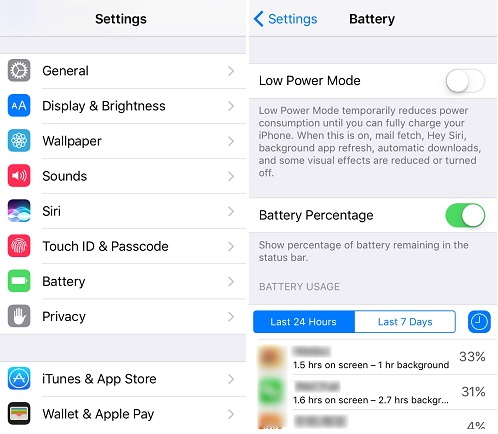
1.Check Battery Performance

Viruses are harmful programs that run in the background. They drain the battery of your iPhone very quickly. So, you need to check the battery performance of your iPhone.

Step 1. Go to Settings and tap on Battery.

Step 2. All the apps with the respective battery usage will be listed.

Step 3. When you tap on Show Detailed Usage, you will get the breakdown of foreground and background usage. If you find an app that you don’t recognize, remove it immediately.


2.Check whether Your iPhone is JailBroken

In the jailbroken iPhone, all the in-built restrictions are removed, making it vulnerable to harmful app installations. Follow the steps given below to check if your iPhone is jailbroken.

Step 1. Open the Search bar in your device.

Step 2. Enter cydia in the search bar and tap Search. If you find Cydia in your iPhone, your device is jailbroken.


3.Check Crashing Apps

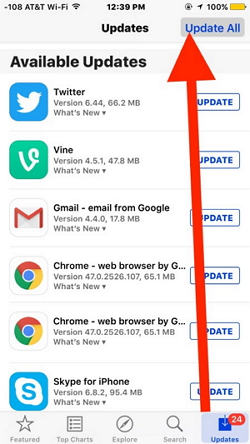
If the apps that you regularly use are suddenly crashing, your device’s privacy has been compromised. Keep all the apps updated to the latest and secure version. Follow the steps below to update the apps.

Step 1. Open App Store on your device.

Step 2. If asked, enter the Apple ID and password.

Step 3. If there are any updates available, tap Update All.


4.Check Unknown Apps

The malicious apps look similar to the original apps so you need to be extra careful while checking for unknown apps.

Step 1. Swipe through the screen and look for the apps that you don’t remember installing.

Step 2. If you find an app that looks suspicious, delete it immediately.

Step 3. To see the list of apps that are installed from App Store, tap the Apps icon -> your profile photo -> Purchased. If you have an app on iPhone that doesn’t belong to this list, it is malicious.


5.Check Pop-up Ads in Safari

When there is a sudden surge in the pop-up ads, your device is definitely infected. To be safe, don’t click any of the pop-up ads.


6.Check Unexplained Extra Charges

Viruses use your phone’s data to access the internet and always run in the background. Keep checking your bill statements to ensure that there is no sudden surge in your data usage or messages.
2#: 5 Things to Do after Checking iPhone for Virus/Malware

After checking all the steps above, if you find something suspicious or unknown apps, you need to take actions on this situation.
1.Turn off & Restart your Device

Step 1. Hold down the power button of your device until you see a slider.

Step 2. Slide and turn the iPhone off.

Step 3. To restart, hold down the power button until you see the Apple logo.


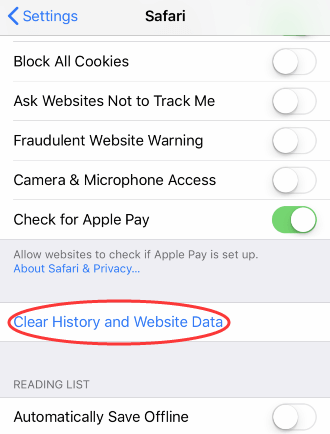
2.Clear History & Website Data

Step 1. Open Settings on your device and tap Safari.

Step 2. Again tap Clear History and Website Data.

Step 3. Confirm by tapping Clear History and Data.


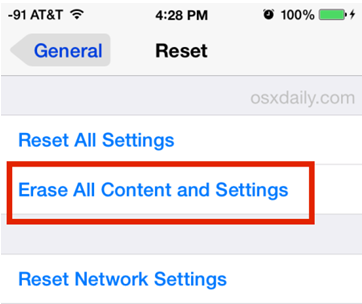
3.Reset Your iPhone as a New One

If nothing works, you need to factory reset your iPhone.

Step 1. Go to Settings -> General -> Reset -> Erase All Contents and Settings.

Step 2. Enter your passcode to confirm the reset.

Step 3. The process will take some time to complete. Then set up your device as a new one.


4.Restore your iPhone from Backup

You can also restore the backup to your device to remove the viruses. You can restore either the iTunes backup or iCloud backup to your iPhone. If the most recent backup is corrupted and if for any reason you are not able to restore, it might contain malware. So, restore one of other backups to your device.


Sponsor ads:

Gihosoft Free iPhone Data Recovery:iphonerecovery.com

Free iPhone Data Recovery Software for Windows/Mac

Recover up to 12+ types of files, including contacts, SMS, photos, WhatsApp, Viber, notes, etc.

Restore lost data from iOS devices directly or from iTunes and iCloud backup

Recover iPhone data lost due to iOS upgrade/jailbreak, accidental deletion, device lost or broken

Support all the latest iPhone, iPad and iPod Touch

Both Free and Pro version.

If you lost data after you updated to a new iPhone, you can always use Gihosoft iPhone Data Recovery to get the data back from the old iPhone or backup.
Top 10 Best FRP Bypass Tools to Bypass Google Account on Android Device 2019

Worth reading:download youtube 1080p

If you use android phones, please choose Gihosoft Android Data Recovery


Jihosoft Android Data Recovery: the best Android Data Recovery software for Windows and Mac to recover deleted contacts, messages, photos, videos, WhatsApp and etc from Android