Monday, August 20, 2018

How To Find Someone on Instagram?


Are you desperately searching for how to find someone on Instagram? You can do the same in many ways. But you may not know even a single method provided you are a new user or haven’t used Instagram for a long time. That’s why I have crafted this guide to help you find people on Instagram. Don’t worry! It will not take one heck of your time. Moreover, the process is very easy to follow. Recently, we have also shared step by step tutorial on how you can send direct message on Instagram.


See Also: How to Save Instagram Photos and Videos on Android Phones

How to Find Someone on Instagram?


I have found out a number of ways to find people on Instagram. You can read them below.

1. How to Find Someone on Instagram for PC?

You know Instagram is a mobile application, don’t you? Even though you can sign into your account using Instagram for PC, they won’t give you all the features you get on the mobile application. Apparently, the search field is one such app-only feature.

Still, you get two ways to find a person on Instagram for PC. Find out both below.

How to Find Someone on Instagram for PC with Username?

The process is fairly simple and you won’t be having any doubts regarding this, I swear.

Open your web browser. Then, enter instagram.com/username into the address bar. Don’t forget to replace the username with the exact one.

Boom! Can’t you see your friends profile there?

Find Your Friends on Instagram using Web Applications

There are many web apps for Instagram to help you access all the features. You are going to read how to find someone on Instagram with the help of web applications.

Step 1: Open your web browser and, enter the address of the Instagram web app you use (gramfeed.com or web.stagram.com or anything).

Step 2: Use the Sign in with Instagram button there. You will be asked to authorize the web app on Instargam. Don’t hesitate to do the same.

Step 3: Unlike on the in-house web version, you will get a search field here. Enter the name of your friend into the field.

There you go! You will get the profile of him/her right away.

You may also like – Best Instagram Captions

2. How to Find Someone on Instagram Mobile Application?

Maybe you use the app only. So here in this section, you will find out the method to find people on the application.

Step 1: Pick up your phone and open Instagram application. Don’t forget to login with proper credentials in case you aren’t done the process already.

Step 2: Once you are on the interface, you can see a search field on the bottom. Just tap on the same to initiate the finding process.


Step 3: Tapping on the search field will give you four different options; top, people, tags and places. As we are looking for a person here, you have to choose the second one.



Step 4: Then, type the name of the person on the given field. If you know his/ her username, you should enter the same because usernames are unique on Instagram whereas a name can be taken by multiple people.


Boom! Provided you enter the username or name without any typos, you will get the profile right away.

Do you know how to find someone on Instagram by email? Or maybe you are looking for a way to find a person at Instagram with phone number or social media. Whatever it is, you can follow the method I am going to give next.

Also Read:- How to Manage Multiple Instagram Accounts in Mobile

Another Way to Find Someone on Facebook using the Application

Step 1: Open the app and sign into your account using the correct credentials.

Step 2: Go to your profile by clicking on the doll icon on the top-right portion of the screen. Once you reach your profile, click on the three dots given on the top-right corner.


Step 3: The first few options will aid you in finding people from your contacts or Facebook friend list. In order to find someone by their email, you must save their ID in your contacts.


Also Read:- Easy Steps to Hack School WiFi (Tutorial)

3. How to Find Someone on Instagram with Just a Picture?

What if you don’t have a name, username or anything but a picture of an Instagram profile? How will you find the owner then?

Well, let’s just find out the same.

Step 1: Open your browser and enter tineye.com into the address bar or click here.
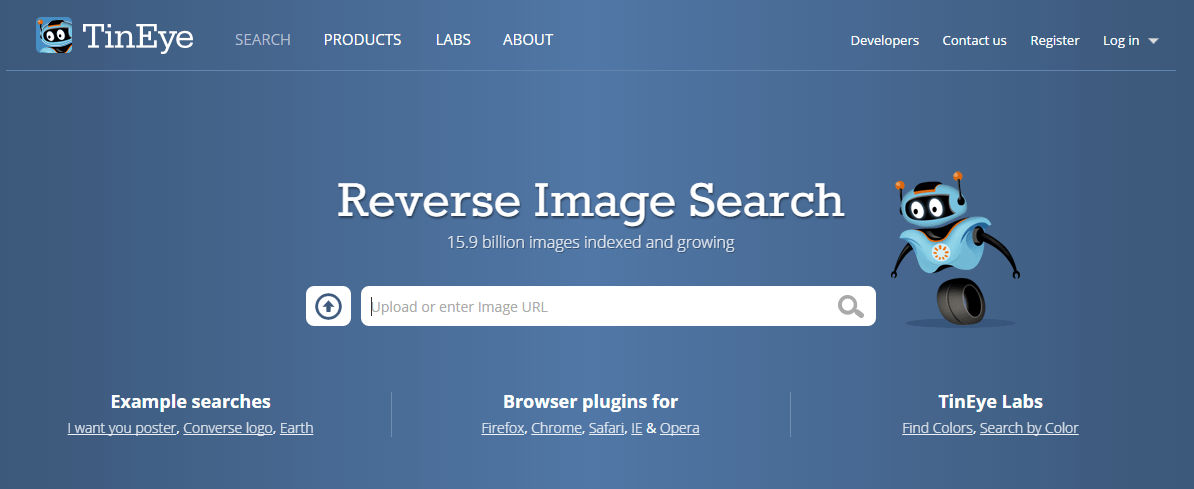


Step 2: When you reach the website, you will see a field there. If you don’t have the image file on your hard disk and you know the URL, just insert the same (URL) on the given field there. Then, press Enter.You may also like:online youtube downloader

That’s it. Tineye will find the sources of the images for you. If you are fortunate enough, you can find any page from Instagram there.You may also like:

Gihosoft Total Video Converter is a professional all-in-one video tool that enables you to convert videos and audios into various different formats. You can also download videos from YouTube or other online video sharing sites and convert them easily. Plus, you’re able to personalize your videos with its inbuilt editor, such as, trimming, cropping, applying video effects, adding watermark, subtitles, and more. If you need a powerful and professional desktop video converter program, just download Total Video Converter and follow the step-by-step guide here to have a try.

4. How to Find if Someone Blocked You on Instagram?

You think someone has blocked you. Here we are going to find out whether a person has blocked you or not. Officially, you won’t get any notification about the blockage.

Step 1: Use the #2 method to find out the profile of the person whom you think blocked you. Are you lazy to go back? Then open the app, tap on the search button, choose people and enter the name.You may also like:online youtube downloader

Step 2: Once you find the profile, tap on the same to enter. In case you have been blocked by that person, you won’t be able to see his/her photos.You may also like:how to use move to ios

Can’t you find the profile? Chances are the person maintains a private profile.

Wrapping Up

I have given you about half a dozen ways to search for someone on Instagram.

Hope you won’t search for how to find someone on Instagram anymore.

Do you have any doubt regarding this topic? You can reach out to me using the comment section down below. I will be more than glad to help you out.

Do your social media friends are Instagram buffs? Don’t forget to share this article with them then. They will thank you later.

Related Articles:

How to Find or Track a Lost or Stolen Android Phone Quickly

How to Restore Deleted WhatsApp Messages on Android

How to Retrieve Deleted Facebook Messenger Messages from Android

How to Download Youtube Videos on Android Phone Directly


Wednesday, August 15, 2018

How to Extract Purchased Ringtones from iPhone


How to Extract Purchased Ringtones from iPhone

Naturally, your first plan of action would be to investigate whether or not iTunes can properly handle this. The short answer is “yes”, but not without its complications and limitations.

Step 1: Make sure the computer that you’re using has been properly authorized to play your iTunes Store purchases. You can grant authorization to your computer by going to “Account > Authorizations > Authorize This Computer” on your iTunes and click “Authorize”.


Step 2: Using your iPhone USB charging adapter, connect your device to your computer through a free USB port.

Step 3: Once your device has been recognized by iTunes, go to “File > Devices > Transfer Purchases from [your device]”.Jihosoft Giveaway Alert:

iPhone Backup Extractor - Extract Data from iPhone Backup

The best iPhone Backup Extractor software to extract photos, text messages, contacts, voice memos, note, WhatsApp, Viber and etc from iPhone/iPad backup.

Must Read:Jihosoft iTunes Backup Unlocker

Jihosoft Android Data Recovery: the best Android Data Recovery software for Windows and Mac to recover deleted contacts, messages, photos, videos, WhatsApp and etc from Android devices.

If you can’t sync with iTunes and want to rescue data from a disable iPhone, you could try Gihosoft iPhone Data Recovery. Also feel free to ask questions on the iDevice is disabled error in the comments section below.


This will help you to extract all the purchased files from iPhone to your iTunes library, including music, movies, audiobooks, TV shows, ringtones and more.

Disadvantages of Using iTunes:

iTunes will only support tones that were purchased through the official iTunes Store. This severely limits your freedom when it comes to tones that you created yourself or customized from a purchased source.

Furthermore, there has been various reports of bugs and critical errors within iTunes that has resulted in major data loss and unwanted erasures.

You can’t selectively extract only the specific ringtones from iPhone.

Transferring all the purchased files from iPhone may cause lots of duplicate files on your iTunes library.

Friday, July 13, 2018

How to Delete Pre-Installed Apps on Android 2018

Method 1: How to Uninstall Preinstalled Apps on Android Without Root
DISABLE BLOATWARE


Since Android 4.0 came out, phones have a built in option that allows them to disable bloatware from working in the background and making your phone slow. Unfortunately, there’s no way you can uninstall preinstalled apps without rooting your android phone. However, you can disable them though.


Simply go to your Settings Apps>Applications>Choose the App>Click on Disable


As you can see, this section will provide you the list of apps you have that are stored on your mobile device. By tapping on one of them you can delete them from your mobile phone or disable them from running in the background.


You can do that with the ones that you have downloaded, however, there are even some built in apps that your system allows you to download.


The ones that cannot be deleted can most probably be disabled. I say “most probably” because your phone comes with apps that are essential for it to work smoothly.


So, the safest thing to do is to disable the ones that you don’t need and that your phone is allowing you to. You can also uninstall their updates and save up some more memory in the process.
Method 1: How to Uninstall Preinstalled Apps on Rooted Android PHone
DELETE PREINSTALLED BLOATWARE


So, you may get pretty angry when you want to delete the software so bad but your phone allows you only to disable it. However, there still is a way. This way will recover more from you than usual!


First of all, your phone has to be rooted. What this means is that you need to gain full control over your Android device by “hacking” into it with other software. I say “hacking” because it isn’t really legal to root your device as it is protected by the warranty. However, if you are not afraid to do so (and many people have done it so far) then this is the first step you need to take.


Here is your solution: System App Remover (ROOT).


This is an app you can find on Google Play. What it does is exactly what you need. If your phone is rooted, download the app. The app runes smoothly and it is pretty straightforward to use. But before you can use it you should root your phone first.
No Apps Needed


Literally all you need to do is run the app and find other apps that you want to download from your phone. After you have selected them just tap “Uninstall” and your app will be gone from your phone!
Also Read:7 Best Free Parental Control Apps for Android to Keep Your Kids Safe
Also Read:How to Transfer Data from iPhone to iPhone X/8/8 Plus
Also Read:8 Best To-do List Apps for Your iOS Device to Make Your Work Done
That’s all that you need to do!


THE FINAL VERDICT


So, depending on your situation, you choose what the best option for you will be. If you only want to delete these apps because they take more memory from your phone and you are running low on it, I would advise you not to root your phone.


The best thing for that situation would be to simply buy a better SD card for your phone. They aren’t really that cheap nowadays! You can buy the card and disable the apps that you find unnecessary.


If however you really want some apps gone from your phone and your phone doesn’t allow it, follow the steps that you have found in this article.


That would be it when it comes to this article! I hope you have enjoyed the article and I hope you have learned something new! Until next time, good luck with deleting your bloatware!Gihosoft Android data recovery Free is a super awesome software specialized in Android file recovery. With this program, you are able to recover deleted photos, music, videos, messages, contacts, call logs, WhatsApp messages, Viber chat history and more from Samsung, Huawei, LG, HTC, Motorola, Google, Oneplus, Sony, Lenovo, ZTE and other Android devices directly. Meanwhile, this Android data recovery software is available for both Windows and Mac platforms.https://www.gihosoft.com/android-data-recovery-free.html

Sunday, June 10, 2018

Backing up WeChat Data on iPhone

Backing up WeChat Data on iPhone

Back up WeChat Messages on iPhone


The Cloud backup feature is not supported from WeChat 6.2.5. However, WeChat will keep your chat history permanently within the application on your iPhone as long as you do not remove the app and the device has enough storage space.
Back up WeChat Chat History to PC


For this to work, you have to connect both your iPhone and PC to the same internet network. After connecting your devices to the same internet connection, follow the steps below:


Step 1: Open WeChat for Windows. Click More in the lower-left corner.


Step 2: Select Backup and Restore and then tap Back up on PC.


Step 3: Select the chat history to back up on your mobile device. Confirm for the backup process to begin. Keep the devices connected to the same internet connection for the back up to finish.


Do you like this story?


Sponsor Ads:


Gihosoft iPhone Data Recovery is a professional iPhone Data Recovery software to get back all your lost text message, photo, video, call history, note, contact and more from iPhone/iPad/iPod Touch. It offers a full solution to recover your lost data in different tough situations. Besides recovering data directly from iPhone, iPad and iPod touch, it also allows you to recover data from iCloud and iTunes backup files.


Top 7 Ways to Fix WeChat Update Stuck on iPhone/iPad

Top 7 Ways to Fix WeChat Update Stuck on iPhone/iPad


1Restart Your iPhone/iPad


Your iOS device may have a bug that is keeping the WeChat from finishing the update. This can be fixed by simply restarting the device via the following the steps below:
iPhone X


Step 1: Press both the side button and either volume up or down button. Hold the buttons until a slider shows.


Step 2: Drag this slider. This turns off the iPhone X.


Step 3: Press and hold the side button again until an Apple logo appears.


iPod touch, iPad, or iPhone 8 and Earlier


Step 1: Press and hold the Side (or Top) button until you see a slider.


Step 2: Drag this slider. Your device should turn off.


Step 3: Press and hold the Side (or Top) button again until an Apple logo shows.


2Manage Your iPhone Storage


An application update on iPhone/iPad will require some extra space. If this space is lacking in your device, you will experience the iPhone WeChat update stuck problem. To check and manage the space available on your iPhone, follow the steps below:


Step 1: Open Settings and then tap General.


Step 2: Click Storage & iCloud Usage and then tap Manage Storage.


Step 3: Confirm that you want to delete the apps you do not use or need. Then remove them from your device by tapping Delete App. Try updating your WeChat again.


3Clear WeChat Cache


WeChat stores data in its temporary storage which allows the data to be accessed faster. This makes the application quick in processing requests. However, the cache may be responsible for the WeChat crash or stuck. Follow the steps below to clear the WeChat cache.


Step 1: Tap [Me], then select Settings, tap on General, tap Storage, finally click Clear WeChat.


Step 2: Choose the chat logs and the groups you wish to clear.


Do you like this story?


Sponsor Ads:


Gihosoft iPhone Data Recovery is a professional iPhone Data Recovery software to get back all your lost text message, photo, video, call history, note, contact and more from iPhone/iPad/iPod Touch. It offers a full solution to recover your lost data in different tough situations. Besides recovering data directly from iPhone, iPad and iPod touch, it also allows you to recover data from iCloud and iTunes backup files.


Note: “Storage” only cleans up the cache for your WeChat chat sessions and will not remove your chat history. From version 6.3.24 of WeChat, this cache for the chat sessions will be automatically cleared up regularly.
4Toggle Airplane Mode on and off


Airplane mode may be interfering with your WeChat update. To eliminate iPhone WeChat update stuck problem which is caused by Airplane mode, follow the steps below:


Step 1: Open Settings and Scroll down until you locate Airplane Mode.


Step 2: Toggle off the Airplane Mode switch.


5Update WeChat Version


Sometimes, a WeChat update stuck or crash is as a result of you have an older version of the application on your iOS device. This can be fixed by updating your WeChat. To update your WeChat, you need to download the latest version at http://www.wechat.com/en/.
6Change Another Wi-Fi Hotspot


Updating WeChat requires an active internet connection. If the current Wi-Fi hotspot you are connected to is not working, you will experience the iPhone WeChat update stuck issue. To solve this, you can switch to a new Wi-Fi hotspot by following the steps below:


Step 1: Open Settings and then tap Wi-Fi. Turn it on if it is off.


Step 2: Tap the name of the Wi-Fi you wish to join. Enter a password if prompted.


7Reset Network Settings


Your iPhone/iPad may have a network issue that prevents it from connecting to the internet. This issue can be fixed by following the steps below:


Step 1: Open Settings and tap General.


Step 2: Tap Reset and then click Reset Network Settings.


Step 3: Enter your passcode if prompted for one. Tap Reset Network settings then.


Sunday, August 27, 2017

This could be the screen of the next iPhone


This time again a new trio of images of what is possibly the screen or SlashLeaks of the next iPhone 7s with a next-generation 3D touch module. Must Read:How to get more storage on iPhone?


Throughout this wait on the departure of the new iPhone phones, have been filtering various images and videos of what could be some parts that make it up, making the big fans of this brand, take the difficult task of waiting Until the official launch sometime next month.
Will this be the screen of the iPhone 8 / 7S?


But from this new information we can not attest that it is totally true and therefore could not determine if the part shown is pertaining to the next Apple iPhone of 4.7 inches or the model of iPhone 7 already on the market.


Unfortunately, there is not much to get out of the images that are presented, since we can only observe a cut for what would be the start button on the front face, so the button is expected to be a non-mobile variant like the IPhone 7.


That could mean that the phone could continue to use the captured fingerprints on the Home button unlike what would be the new range of Iphone 8 since it would replace the Touch ID by the advanced 3D facial scanner.iMyFone D-Back iPhone Data Recovery Get Back Lost Files on iPhone:If you lost videos from iOS Camerall Roll which are nowhere to download again, you can use Gihosoft iPhone Data Recovery to get back deleted videos from iOS device including iPhone, iPad and iPod Touch.
Jihosoft iPhone Backup Extractor Extract and recover all types of data from iPhone backup files, such as camera roll photos, videos, SMS, contacts, reminders, WhatsApp, and etc.
Gihosoft Android data recovery Free is a super awesome software specialized in Android file recovery. With this program, you are able to recover deleted photos, music, videos, messages, contacts, call logs, WhatsApp messages, Viber chat history and more from Samsung, Huawei, LG, HTC, Motorola, Google, Oneplus, Sony, Lenovo, ZTE and other Android devices directly. Meanwhile, this Android data recovery software is available for both Windows and Mac platforms.


Other components of the iPhone 8 / 7S


Undoubtedly, with all that attracts the fact of this launch of these devices, on Twitter by the well-known leakage source of Benjamin Geski, unveiled what is possibly the logical card of the new iPhone that is about to leave.


All of the iconic news, as this could match the brand on the logic board on the back of an alleged Apple 11 chip that came to light by Weibo earlier in the week.


Rumors say the processor is designed and built with TSMC's latest 10-nanometer technology, so it should appeal to a smaller die size and allow the CPU to work faster and with less power.

Tuesday, August 22, 2017

What's new in iOS 11 beta 7 for developers?


During yesterday, Apple released iOS 11 beta 7 for developers , which will probably be the last trial version before the time of truth, the official launch of iOS 11 the month of September.


As it is tradition in any update, it includes a series of patches to solve errors and problems detected in previous versions , as well as a series of novelties that we proceed to explain for which values ​​yourself if it is worth downloading.


First of all, remember that it is a beta and not an official version , so it will have bugs of all kinds and that is also a developer version, that is, it is not public. Therefore, you will need a special profile. However, if you wish, here we tell you how to download it .


IOS 11 beta 7 developer news


Among the new features detected:


Bluetooth : CBManagerStatePoweredOff now indicates when Bluetooth is disabled in Settings and when the user has limited Bluetooth in the Control Center for use with Apple Watch and Apple Pencil.


New icons : Apple Music has undergone a refresh on its icon in the Control Center when there is no music playing. Related Read:iMyFone recover deleted text messages iPhone without backup


New lock screen design , which has been merged with the notification center to increase simplicity and speed of use.


New features and slight aesthetic changes in the Camera, Photos and Siri app.


Apple Pay Integration in the native Messages app .


Detection of a bug that prevented users from switching from iOS 11 beta 5 to beta 6 or later. To resolve this, go to Settings > General > Storage and delete the download to reinstall.If you ever lost or accidentally deleted data from your iOS device, you can use the professional Gihosoft iPhone Data Recovery software to retrieve important data from iPhone, iPad or iPod Touch even without backup.

Jihosoft iPhone Backup Extractor Extract and recover all types of data from iPhone backup files, such as camera roll photos, videos, SMS, contacts, reminders, WhatsApp, and etc.


New design that allows a more customizable Control Center .


Implementation of the " Do not disturb the steering wheel " mode, one of the most expected in this new operating system. This is how you can configure it properly .


Via | MacRumors